Heat-Mat NGTouch Programmable Thermostat

Getting started
Setting up the NGTouch
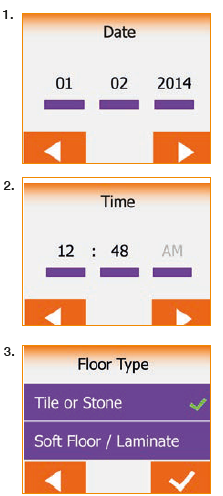
When the system has been installed and turned on for the first time, or after you have performed a factory reset, you must set the Date, Time and Floor Type. The thermostat will automatically guide you through the process.
- Date – set the current date
- Press the item you want to change. Use the Up Arrow or Down Arrow to set the day, month and year
- Confirm each setting with ü
- Time – set the current time
- Press the item you want to change. Use the Up Arrow or
- Down Arrow to set the hours and minutes
- Confirm each setting with ü
- Floor Type – choose between:
- Tile or Stone
- Soft Floor/Laminate
Default Heating Schedule
The system will operate in the ‘default heating schedule’ (unless you choose to override this schedule with your own programmed settings – see pg. 19-21). During the ‘default heating schedule’, the temperature is controlled automatically according to the default schedule.
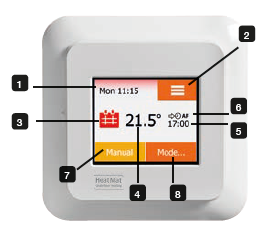
Default heating schedule home screen:
- Day and time info
- Press here to access the menus
- An icon indicating the current operating mode. The calendar represents the default heating schedule or your own programmed operation
- Current target temperature (if shown in red, heating is being provided)
- Time of the next scheduled event change
- If shown, the adaptive function is enabled
- Press here to access the Manual override. Alternatively, if Eco Function is enabled, pressing here activates the Eco function
- Press here to access alternative modes (Comfort, Boost, Frost Protection, and Holiday)
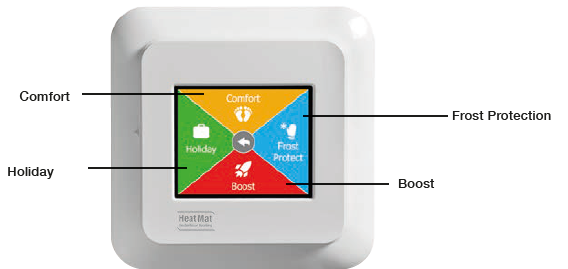
The thermostat has a number of modes of temperature control. These can be found in the mode menu, accessed via the ‘Mode’ button in the bottom right of the home screen. The mode menu consists of four modes that can be used for easy programming. These modes include Comfort, Boost, Frost Protection, and Holiday. There are also two other modes Manual and Eco. Manual mode allows manual operation of the thermostat and Eco mode is an energy-saving function. See page 12 for information on Manual Mode and page 39 for Eco mode
The mode menu includes:
Manual Mode
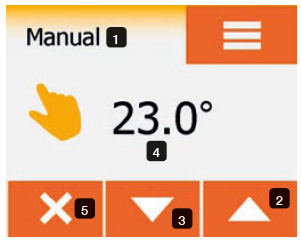
You can use a Manual to override the current schedule and maintain a specified temperature around the clock. The thermostat will continue to operate in Manual Mode until you return to the heating schedule.
- From the heating schedule home screen, press the Manual button to access the manual override. The mode name is visible in the top left corner (1)
- Use the Up Arrow (2) or Down Arrow (3) button to select the temperature (4)
Comfort Mode
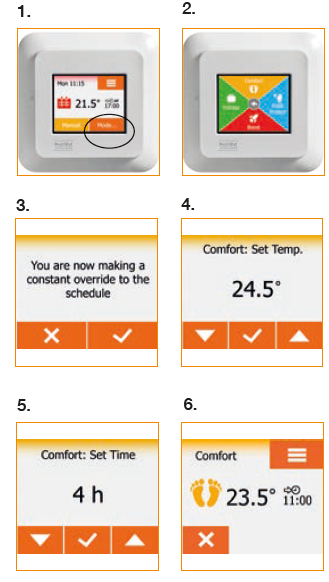
You can use Comfort Mode when you want to temporarily override an event program and adjust the target temperature. For instance, if you want to heat a room that would normally be unheated, for an evening or a short period of time. You can manually set a comfortable temperature, which the thermostat will maintain for your chosen period of time (from 1 to 23 hours) before returning to the heating schedule.
- From the heating schedule home screen, press the Manual button to access the manual override. The mode name is visible in the top left corner (1)
- Use the Up Arrow (2) or Down Arrow (3) button to select the temperature (4)
You can use Comfort Mode when you want to temporarily override an event program and adjust the target temperature. For instance, if you want to heat a room that would normally be unheated, for an evening or a short period of time. You can manually set a comfortable temperature, which the thermostat will maintain for your chosen period of time (from 1 to 23 hours) before returning to the heating schedule.
- From the home screen, press Mode to access the alternative modes
- Choose Comfort
- Press
 to confirm that you wish to override the current heating schedule
 - Use the Up or Down Arrow to select the required temperature
- Confirm with
- Use the Up or Down Arrow to set the required duration of Comfort mode.
- Confi rm with
- A confirmation screen will briefly appear before the Comfort mode home screen is visible
Boost
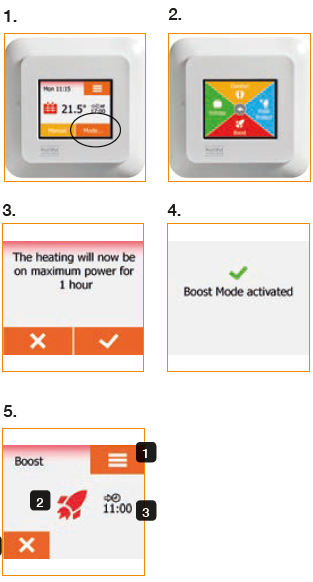
In Boost mode, the underfloor heating is boosted to full power for one hour. After one hour, the thermostat returns to the heating schedule. This could be used when returning to a cold room where you want to warm up as quickly as possible.
- From the home screen, press Mode to access the alternative modes
- Choose Boost
- Confirm that you wish the thermostat to activate Boost by pressing ü
- A confirmation screen will briefly appear. The thermostat automatically enters the Boost home screen
The Boost home screen explained:
- Press here to access the main menu
- The rocket icon indicates Boost is the current operating mode
- The time at which the thermostat will return to the heating schedule
- Press the “X” to quit Boost mode and return to the heating schedule
Frost Protection
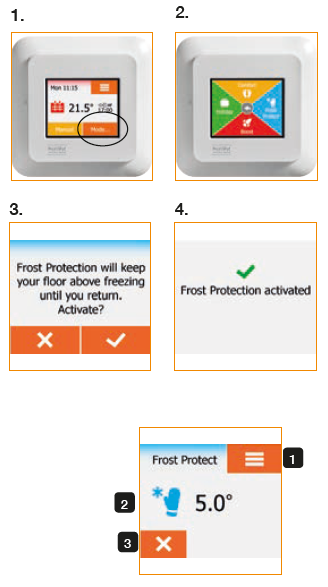
Frost Protection mode is used when heating is not needed but the temperature must be kept above freezing until changed manually. This is usually used in holiday cottages, outbuildings or similar properties that may be left unattended for long periods of time in the winter.
- Press the Mode button on the home screen
- Select Frost Protection
- Select “ü” to activate
- A confirmation screen will be displayed briefly before the thermostat automatically enters the Frost Protection home screen
- While in Frost Protection mode an ice crystal and glove icon are displayed on the home screen together with the target/set point temperature (5.0°C).
The Frost Protection home screen explained:
- Press to access the main menu
- The glove icon indicates Frost Protection is activated
- Press “X” to return to the heating schedule
Holiday Mode
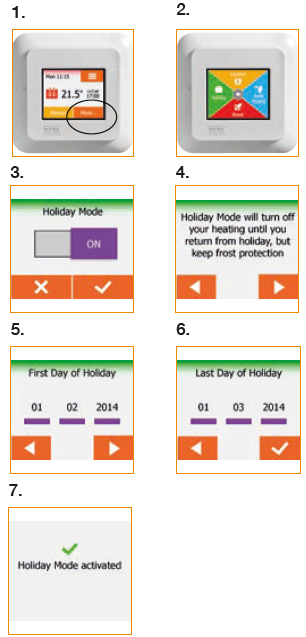
Holiday Mode allows you to set your heating to a minimum while you are away on holiday, saving both energy and money. You must set holiday start and end dates. The thermostat will ensure that your floor is kept above freezing and your home is warm when you return.
This is accomplished in just a few steps:
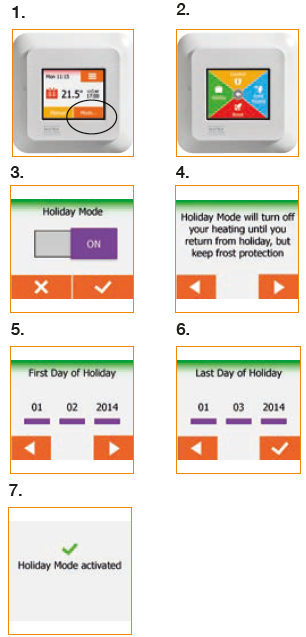
- From the home screen, press Mode
- Select Holiday
- Press OFF/ON towards the right to switch holiday mode on, confirm with ü
- Press the Right Arrow on the confirmation screen to set your dates
- Set the date you are going on holiday by pressing the day, month and year then press the Right Arrow
- Set your return date in the same way and then confirm with ü A confirmation screen is then displayed before the thermostat automatically enters the Holiday home screen. You can cancel an active holiday period and return to the heating schedule by pressing the “X” button.
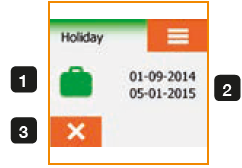
The Holiday home screen explained:
- A suitcase icon indicates Holiday mode is activated
- Holiday mode start date and finish dates
- Press “X” to quit Holiday mode and return to the heating schedule
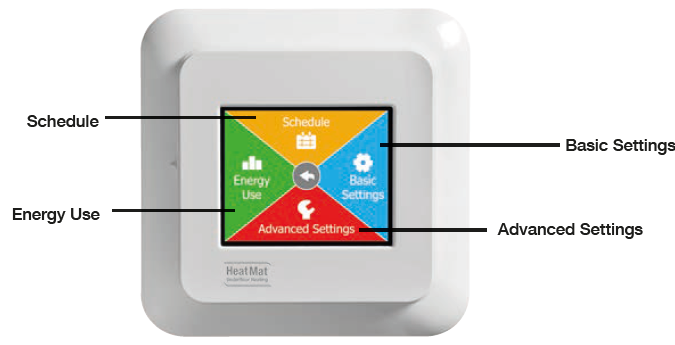
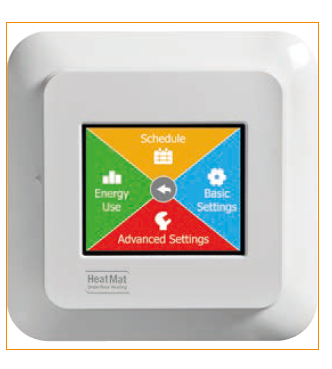
The main menu consists of four options that can be used to configure your thermostat. This menu is accessed via the Menu button in the top right of the home screen.
The main menu includes:
- Schedule – for programming your underfloor heating
- Energy Use – allows you to monitor energy use weekly, monthly, or annually
- Basic Settings – for changing the display, date format, or obtaining support
- Advanced Settings – for accessing the advanced options
Schedule
Heating Schedule 1/3
The heating schedule allows you to control the temperature automatically according to a programmed schedule of your choice. The thermostat comes with a default heating schedule for easy and economic heating control (see Default Heating Schedule under Factory Settings on page 48).
The heating schedule can easily be changed in the following way:
- Press the Menu button on the home screen
- Then press the Schedule button to access heating schedule options
- Select the Week Type
- Choose between “Work days/home days” or “All days are different”
- If you chose “Work days/home days” an information screen will be shown
- Press the Right Arrow to proceed and select the days on which you work by pressing the day (Green indicates a work day and purple a home day). The thermostat will automatically designate the remaining days as home days
- Press the ü button to accept. Tap the Left Arrow button to return to Week Type and again to return to the Heating Schedule menu
- I) For a varied program select “All days are different” (4.)
- II) Accept by pressing ü
- III) Scroll back to the Heating Schedule screen (3.)
Heating Schedule 2/3
The thermostat allows you to program a number of events per day to suit your lifestyle. An event is a scheduled time of day when the thermostat automatically changes the temperature setting. You can choose between a 4 or 6-event schedule.
With a 4 event schedule, you can set 4 different events during work days and 2 different events during home days. – For example, if your day is as follows: You get up in the morning, you go to work, you return home and you go to sleep.
With a 6-event schedule, you can set 6 different events during work days and 2 different events during home days. – For example, if your day is as follows: You get up in the morning, you go to work, you return home for lunch, you go back to work, you return home and you go to sleep.
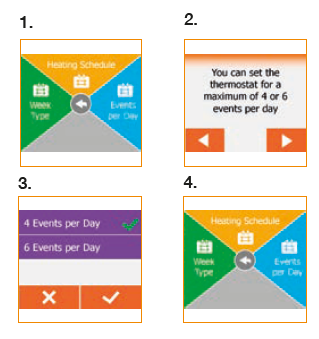
The thermostat is preset to operate a default heating schedule with 4 events per work day and 2 events per home day. This can be changed to 6 events per work day and 2 events per home day as follows:
- In the Heating Schedule menu, press the Events per Day
- On the explanation screen, press the Right Arrow
- Choose between 4 and 6 events per day. Confirm with ü
- You will return to the heating schedule and can begin programming the times for each event. See pages: 19, 20 and 21
Heating Schedule 3/3
- Press the Heating Schedule button to program your days, set up the target temperature and start time for each event
- Programming begins on Monday (Mon) if the schedule is set to “All days are different”, or “Work Day: Morning” if you have selected “Work days/ weekend days” in Week Type. Press the Right Arrow to program this day’s events
- Press the temperature, if you want to change it, then press the Up Arrow or Down Arrow to set the temperature. Confirm with ü icon Press the time, if you want to change it, then tap the Up Arrow or Down Arrow to set the time in intervals of 15 minutes. Confirm with ü icon
- Press the Left Arrow or Right Arrow to toggle through the week and set events
- Once you have set all the daily events, press the Right Arrow to view a confirmation screen (6) or return to the Heating Schedule menu
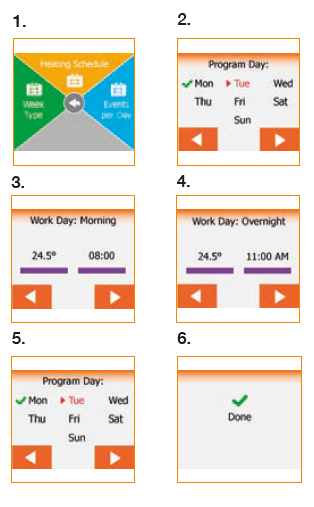
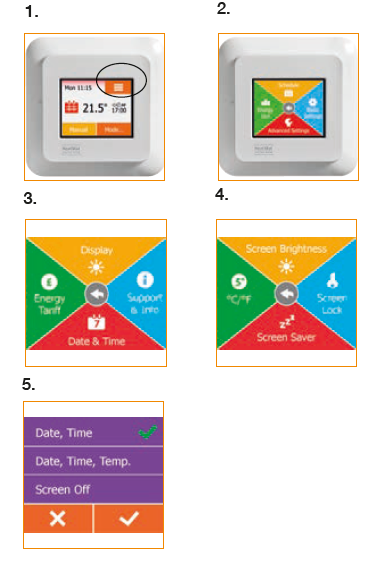
Basic Settings: Display – Screen brightness
- This option allows you to change the brightness of the display.
- Press the Menu button in the top right of the home screen
- Press the Basic Settings button
- Select Display
- Select Screen brightness
- The screen brightness can be adjusted between 1 and 5
- Select one of the five levels of brightness using the Up Arrow or Down
- Arrow. Confirm your choice with
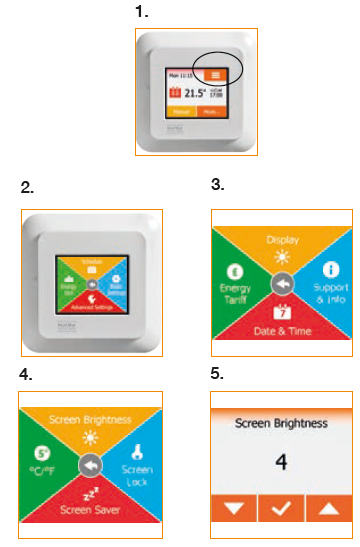
Basic Settings: Display – Screen Lock
The screen lock prevents someone from changing any of the thermostat settings.
- Press the Menu button in the top right of the home screen
- Then press Basic Settings
- Select Display
- Select Screen lock. The screen lock is set to OFF
- Press the OFF/ON button to the right to switch the screen lock to ON.
Confirm your choice with ü or deactivate by pressing OFF followed by
The thermostat will automatically return to Display Settings. The screen lock is activated together with the screen saver if the thermostat has not been operated for approximately 3 minutes.
Before you can operate the thermostat again, you must unlock the screen in the following way from the home screen:
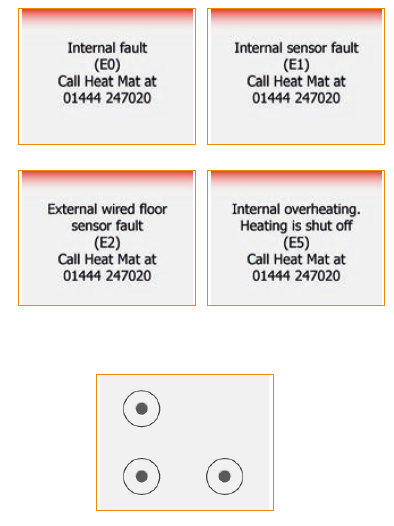
Press the screen to activate it. Three circles containing dots will be displayed. Draw an “L” on the screen in a single stroke without lifting your finger from the screen. Start by touching the dot in the circle in the upper left corner, then slide your finger downwards to the dot in the circle in the lower left corner and continue sliding your finger to the dot in the circle in the lower right corner, forming an “L”. If done correctly, the home screen will appear
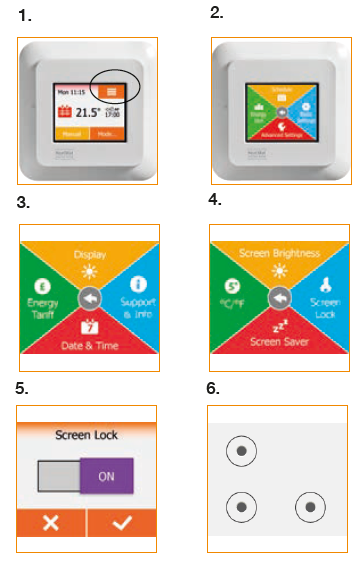
Screen saver
This option allows you to select the information to be shown on the idle home screen as a screen saver. Choose from:
- Date, Time
- Date, Time and Temperature (measured)
- Screen Off. This setting minimizes energy consumption
To access and program the screen saver follow these steps:
- Press the Menu button on the top right of the home screen
- Then press the Basic Settings button
- Select Display
- Press Screen Saver
- Select the information you want to be shown in screen saver mode by pressing an option (Date, Time / Date, Time, Temp / Screen Off)
- Confirm your choice with ü or discard it with X
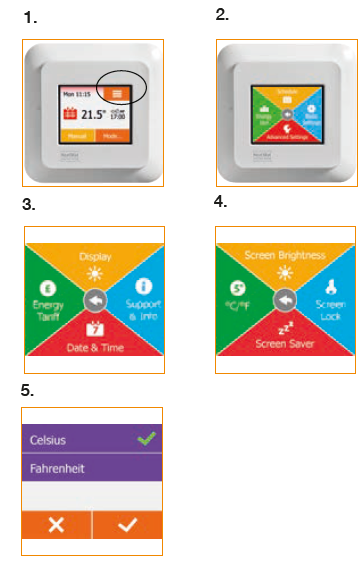
Basic Settings: Display – oC / oF Unit
The thermostat can provide temperature data as oC or oF depending on what you prefer to use. To change the temperature display settings to oC or oF follow the steps below:
- Press the Menu button on the home screen
- Then press the Basic Settings
- Select Display to access the display settings menu
- Press the green C/oF button
- Tap the unit you prefer:
- Celsius
- Fahrenheit
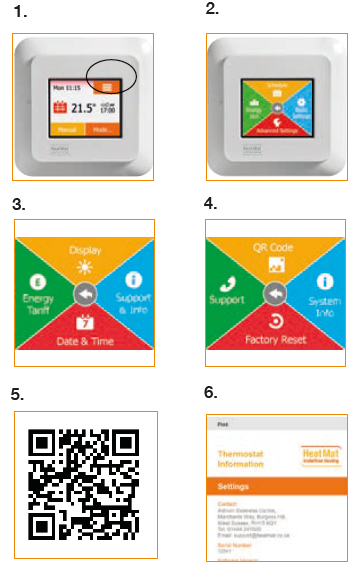
Support & Info: QR Code
This function provides energy usage graphs and diagnostic assistance. Once the QR code has been scanned on your internet-enabled device the data can be emailed to Heat Mat’s Technical Support Team.
- Press the Menu button on the home screen
- Select Basic Settings
- Select Support & info
- Press the QR code button
- Scan the QR Code with a suitable internet-enabled device (Software supporting QR Code scanning is necessary, e.g. an app)
- Scanning the QR Code provides the following data from the thermostat:
- Contact
- Serial Number & Software Version
- Sensor Type
- Application
- Mode
- Adaptive Function
- Open Window
- Screen Lock
- Time Format
- Temperature Unit
- Heating Schedule
- Energy Use
System Info & Support
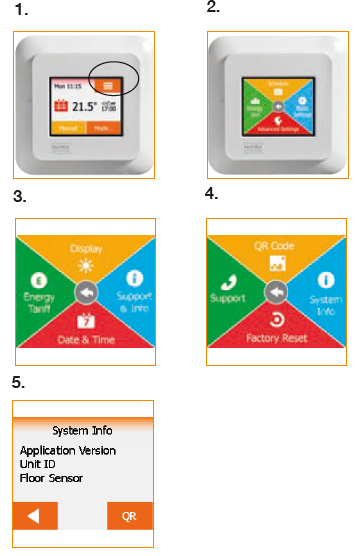
This function provides system information as follows: App. Version, Unit ID, current floor temperature, current room temperature.
- Press the Menu button on the home screen
- Select Settings
- Select Support & Info
- Press System Info
- Information about the thermostat will be displayed on the screen.
- To download this information select the QR code in the right corner.
- To exit press the QR code and scroll back to the “Support & Info” menu
Factory Reset
This option allows you to restore the thermostat to the original factory settings. Note: This action cannot be undone, if you perform a factory reset all your personal settings will be lost.
To access Factory Reset follow these steps:
- Press the Menu button on the home screen
- Select Basic Settings
- Press Support & Info
- Select the red Factory Reset option
- Press X if you want to maintain your settings and return to “Support & Info”.
- Press “Reset” if you want to restore the factory settings. A confirmation screen will briefly be displayed
Date & Time – Time
This option allows you to change the time, which is used by the clock to control heating schedule events during programmed operation.
To set the time follow these steps:
- Press the Menu button on the home screen
- Then press Basic Settings
- Select the Date & Time
- Select Time
- Press the hour digits to set the hour. Use the Up Arrow or Down Arrow to set the hours and minutes. Confirm each setting with ü
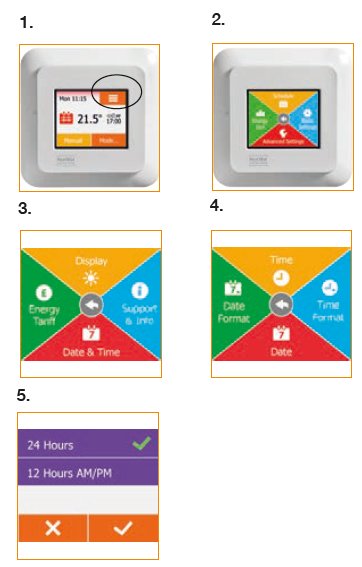
Date & Time – Time Format
This option allows you to change the time format displayed. To set the time format follow these steps:
- Press the Menu button on the home screen
- Then press Basic Settings
- Select Date & Time
- Select Time Format
- Select the time format you prefer:
- 24 Hours
- 12 Hours AM/PM
- Confirm your choice with ü or discard with X
Basic Settings: Date & Time – Date
This option allows you to change the date, which may appear on the screen saver and is used for functions such as Holiday mode and Daylight Saving Time. To set the time format follow these steps:
- Press the Menu button on the home screen
- Then press Basic Settings to access the Date & Time settings
- Select Date & Time
- Select Date
- Press the day to begin setting the date. Use the Up Arrow or Down Arrow to set the month and year. Confirm each setting with
Basic Settings: Date & Time – Date Format
This option allows you to change the date format displayed. To set the date format follow these steps:
- Press the Menu button on the home screen
- Then press Basic Settings
- Select Date & Time
- Select Date Format
- Select the date format you prefer:
- DD/MM/YYYY
- MM/DD/YYYY
- Confirm your choice with ü or discard with X
Basic Settings: Energy Tariff Menu
The Energy Tariff menu allows you to monitor the thermostat’s energy use and set parameters for monitoring the cost of running your system.
Price per kWh
To specify the price per kW hour of your electricity follow these steps:
- Press the Menu button on the home screen
- Then press Basic Settings
- Select the Energy Tariff menu
- Press Price per kWh
 Use the Up Arrow or Down Arrow to set the price in pounds and pence Confirm with
Currency
The currency is set to GBP and cannot be altered on this version of the thermostat.
Basic Settings: Energy Tariff – System Power
System Power calculates the power of the system connected to the thermostat and uses this information to feed into energy cost data.If the system is controlled by a contactor, this function must be switched off and the system power must be added manually. See below: To access System Power information follow these steps:
- Press the Menu button on the home screen
- Then press Basic Settings
- Select the Energy Tariff menu
- Press System power
- Press the OFF/ON button to the right to switch the
- Auto Load Readout to ON to activate System Power.
- Confirm with ü to view the power information screen
- Or discard it with X to return to the “Energy Tariff” menu
- If the Auto Load Readout is turned off you will be given the option of setting the Load of the system manually on the next screen
- Confirm with ü to view the power information screen
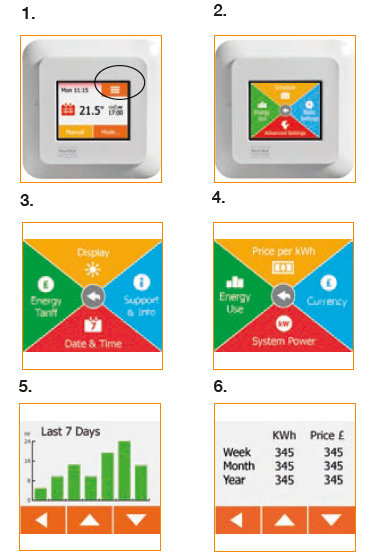
Basic Settings: Energy Tariff – Energy Use
The Energy Use function uses the information provided for Price per kWh to calculate your electricity consumption and the cost of heating for a given period of time. This option allows you to monitor your energy use over a week, month, or year. To see your Energy Use follow these steps:
- Press the Menu button on the home screen
- Then press the Basic Settings button
- Select Energy Tariff
- Select Energy Use
- Use the Up Arrow or Down Arrow to see data for a week, month or year
- Last 7 days: Displays a graph of usage for the past week measured in hours per day.
- Last month: Displays a graph of usage the past month measured in hours per 3 days.
- Last year: Displays a graph of usage for each month of the past year measured in hours per month.
- This screen displays an overview of electricity consumption (kWh) and heating costs (actual load, currency, and price per kWh must be set in the “Energy Tariff ” menu)
- Press the left-hand arrow to exit and return to the “Energy Tariff” menu.
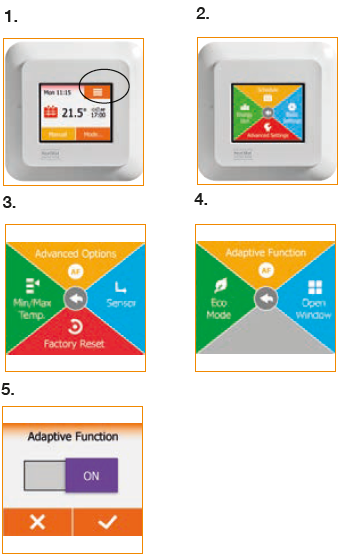
Advanced Settings: Adaptive Function
The Adaptive Function learns the heat characteristics of a room and enables the thermostat to bring the room up to temperature for the start of each programmed event. After a few days, the adaptive function will have automatically calculated when the heating must be turned on/off to achieve this and it will adapt to the seasons to ensure your system runs efficiently. To access the Adaptive Function follow these steps:
- Press the Menu button on the home screen
- Select Advanced Settings
- Select Advanced Options
- Press Adaptive Function
- Press the OFF/ON button to the right for ON. Confirm with ü
- The thermostat will automatically return to Advanced Options
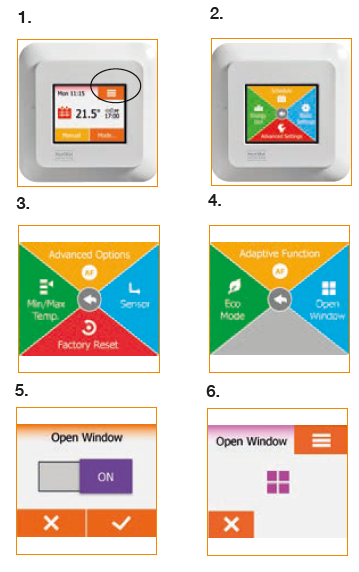
Advanced Settings: Open Window
The Open Window function prompts the thermostat to detect an open window or door, by registering a rapid drop in temperature. With this function enabled, the thermostat shuts off the heating for 30 minutes to avoid needlessly heating a room and wasting heat. To access the Open Window function follow these steps:
- Press the Menu button on the home screen
- Select Advanced Settings
- Select Advanced Options
- Press Open Window
- Press the OFF/ON button to the right for ON. Confirm with ü
- The thermostat will automatically return to Advanced Options.
- The home screen is replaced by the Open Window screen with a purple window icon if the thermostat detects a rapid drop in temperature
- Select OFF if you want to use the thermostat without Open Window activated and press X to exit.
- If an open window is detected, the Open Window screen will appear.
- This function can be canceled by pressing X.
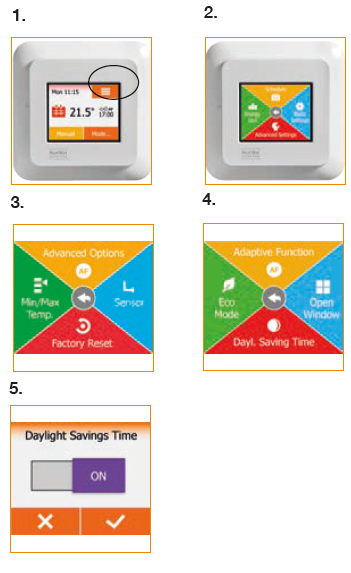
Advanced Settings: Daylight Saving Time
- This option allows you to enable Daylight Saving Time.
- The thermostat will automatically adjust the time for daylight saving.
- To access Daylight Saving Time follow these steps:
- Press the Menu button on the home screen
- Scroll down and press Advanced Settings
- Press the Advanced Options button
- Select Daylight Saving Time
- Press the OFF/ON button to the right for ON. Confirm with ü
- Select OFF if you want to use the thermostat without Daylight Saving Time activated and press X to exit.
- The thermostat will automatically return to the “Advanced Options” menu
Advanced Settings: Advanced Options – Eco Mode
Eco Mode reduces the energy spent on unnecessary heating if you leave the room or house temporarily during a scheduled heating event. If you are going to bed early at 9 pm, but your heating normally stays on until 11 pm, pressing the Eco button will prevent the system from heating needlessly for two hours.
- Press the Menu button on the home screen
- Scroll down and press Advanced Settings
- Press the Advanced Options button
- Select Eco Mode
- Press the OFF/ON button to the right for ON. Confirm with ü
- The thermostat will automatically return to the “Advanced Options” menu.
- With Eco Function enabled, the programmed operation home screen is altered. The lower left button, Manual, is changed to Eco
If you press the Eco Mode button, the thermostat enters an energy-saving state, in which the lowest setback temperature in the event schedule is used as the temperature set point. This usually leads to the thermostat switching off at this point. At the next programmed event change, the thermostat returns to normal programmed operation.
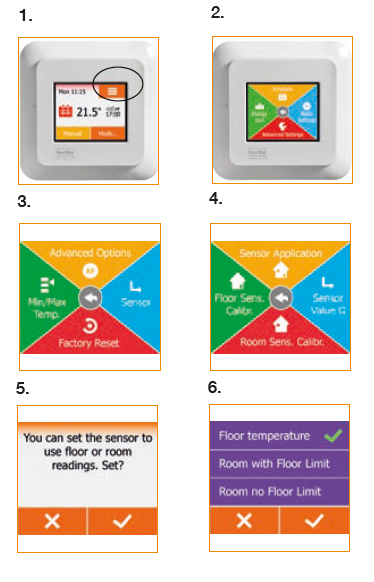
Advanced Settings: Sensor – Sensor Application
The Sensor Application allows you to choose which sensor is used to control the heating system. The options are:
- Floor temperature (default): With this setting, the floor sensor controls the heating system. Use the floor temperature option if the thermostat is in a cupboard, or not in the room to be heated. Also use if there is another form of heating regularly used in the room, such as a radiator system.
- Room/Floor Limit: With this setting, the room sensor controls the heating system subject to maximum and minimum limits for floor temperature. Floor
- Limit temperatures are set using the Min/Max Temp in the Advanced Options menu. The maximum temperature depends on floor type and temperature scale.
- Room no Floor Limit: With this setting, the room sensor inside the thermostat controls the heating system. Only use this option if you have an alternative way to limit your floor temperature.
- Press the Menu button on the home screen
- Press Advanced Settings
- Press Sensor
- Select Sensor Application
- An information screen will follow. Press ü confirm or X to return to the “Sensor menu”
- Select the application you want to use. Confirm your choice with ü or discard it with X. You will return to the “Sensor menu
Advanced Settings: Min/Max Temp. 1/2
This function allows you to set a minimum and maximum temperature the thermostat can reach and the minimum and maximum limits for floor temperature.
Operating temperatures:
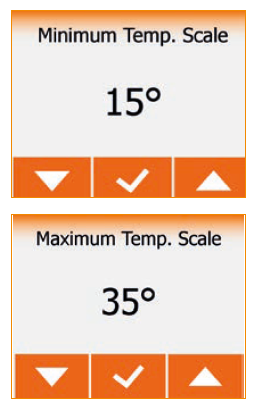
- Minimum Temp. Scale and Maximum Temp. A scale set the highest and lowest temperatures that you can program the thermostat to reach.
- The minimum Temperature Scale can be set between 5°C and 15°C
- Maximum Temperature Scale can be set between 20°C and 40°C
- (If Sensor Application is set to “Floor”, a maximum temperature of 27°C can protect wooden floors from drying out and overheating. For precise information, please ask your flooring supplier)
Floor limit temperatures:
- Minimum Temp. Limit and Maximum Temp. Limit set the highest and lowest temperatures that the thermostat will allow the floor to reach. Remember: the thermostat can only sense the floor temperature wherever the floor sensor is located; it can’t measure the entire floor temperature.
- Floor limit temperatures allow you to set the lowest (Minimum Temp. Limit) and highest (Maximum Temp. Limit) permissible floor temperature during normal room temperature control. If the floor temperature drops below the Minimum Temp. Limit, the thermostat will activate the heating system to maintain the temperature above the set minimum.
- If floor temperature rises above the Maximum Temp. Limit, the thermostat will deactivate the heating system to maintain the temperature below the set maximum.
- Floor Limit temperatures are only visible if “Room/Floor Limit” is selected under Sensor Application.
- Floor Limit temperatures are only visible if “Room/Floor Limit” is selected under Sensor Application.
Advanced Settings: Min/Max Temp. 2/2
- Minimum Temp. Limit – use this setting to provide permanent frost protection to a floor, and to avoid sensitive floor coverings going below a certain temperature.
- Maximum Temp. Limit – use this setting to protect non-tile and stone floors from excessive temperatures. Can be set between 10°C and 40°C.
NOTE: If the maximum limit for floor temperature is too high, sensitive floor types may be permanently damaged.
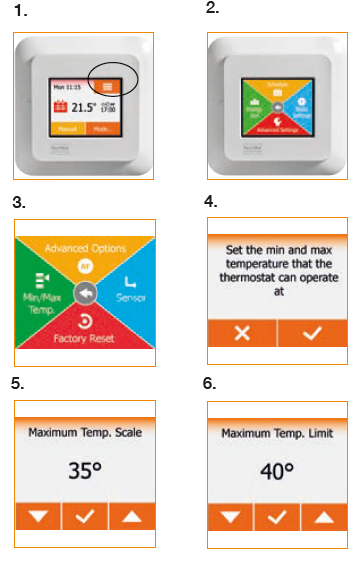
To change the Min/Max Temp. follow these steps:
- Press the Menu button on the home screen
- Press Advanced Settings
- Press Min/Max Temp.
- Confirm that you want to set minimum and maximum operating temperatures for the thermostat by tapping ü or cancel with X
- If “Room/Floor Limit” or “Floor Temperature” has been selected under “Sensor Application” you can now set Minimum and Maximum temperature limits.
- Use the Up or Down arrows to set the Minimum and Maximum Temp. Scales
- Confirm each setting with ü
- Use the Up or Down arrows to set the Minimum and Maximum Temp. Limit
- Confirm each setting with ü
- If “Room no Floor Limit” has been selected under “Sensor Application” you can only set the Minimum and Maximum temperature scale
- A confirmation screen will be displayed. The thermostat will automatically return to the “Advanced Settings” menu.
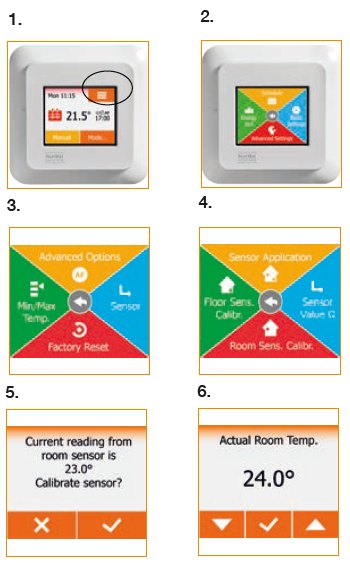
Room Sensor Calibration
This option allows you to calibrate the room sensor. You should calibrate the sensor if the temperature reading differs from the actual room temperature. You can calibrate the sensor with +/- 10°C in steps of 0.5°C in the following way:
- Press the Menu button on the home screen
- Press Advanced Settings
- Press Sensor
- Press Room Sens. Calibr.
- Confirm that you want to calibrate the sensor with ü or cancel with X.
- If you decide to calibrate the sensor, you must measure the room temperature and manually adjust the thermostat to reflect the temperature reading you have taken
- Use the Up Arrow or Down Arrow to set the Actual Room Temp.
- Confirm the value with ü
- A confirmation screen will be displayed briefly. The thermostat will automatically return to the “Sensor” menu.
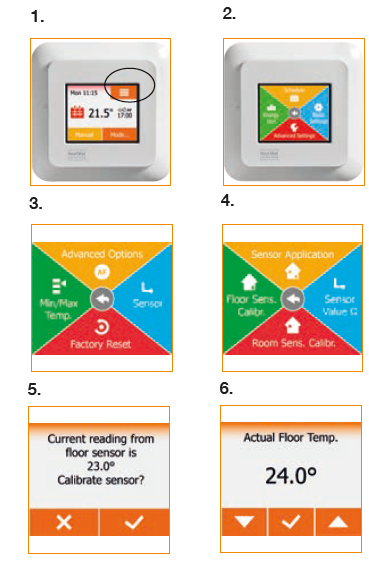
Floor Sensor Calibration
This option allows you to calibrate the floor sensor. You should calibrate the sensor if the temperature reading differs from the actual floor temperature. Remember, the floor sensor sits beneath the floor covering so is likely to register a floor temperature above the temperature measured on the top of the floor covering.
Note: changes in the floor sensor characteristics may damage certain floors.
You can calibrate the sensor with +/- 10°C in steps of 0.5°C in the following way:
- Press the Menu button on the home screen
- Press Advanced Settings
- Press Sensor
- Press Floor Sens. Calibr
- Confirm that you want to calibrate the sensor with ü or cancel with X.
- If you decide to calibrate the sensor, you must measure the floor temperature and manually adjust the thermostat to reflect the temperature reading you have taken
- Use the Up or Down Arrows to set the measured floor temperature. Confirm with ü
- A confirmation screen will be displayed briefly. The thermostat will automatically return to the “Sensor” menu
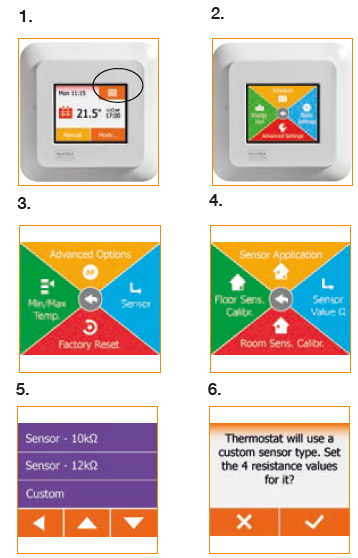
Advanced Settings: Sensor Value
This option allows you to choose the type of floor sensor for the thermostat. This setting is only required if you are using the NGTouch to control an old electric UFH thermostat and want to use the original sensor. Please contact the manufacturer of your old thermostat, or check the user manual, to confirm the sensor type it uses. The sensor supplied with the thermostat is a Heat Mat sensor listed as: “Factory”. Sensor options include:
- Factory (default)
- Sensor 10 kΩ at 25oC
- Sensor 12 kΩ at 25oC
- Custom
To access the above options follow these steps:
- Press the Menu button on the home screen
- Press Advanced Settings
- Press Sensor
- Press Sensor Value
- Select the value you prefer by using Up or Down arrows and pressing the text.
- Confirm with ü or press the left arrow to exit
- If “Custom” is chosen, please provide resistance values for the sensor at 4 temperatures: 15°C, 20°C, 25°C and 30°C (ask the supplier of your sensor for these values).
- Use the Right Arrow or Left Arrow to toggle through the temperatures. Press the resistance value to change it. Press the Up or Down
- Arrows to set the resistance. Repeat until all 4 resistance values have been set
- Tap the Left Arrow button to return to the “Advanced Settings” menu
Energy Use
See page 39 for information on Energy Use. This function can also be accessed from: The basic Settings – Energy Tariff menu.
Factory Settings
| Preset temperatures: | |
| Operating mode | Factory preset temperature |
| Scheduled Operation | See Default heating schedule* |
| Manual Override | 23°C* |
| Comfort Mode | 23°C* |
| Boost Mode | Max °C ≤ Maximum Limit |
| Holiday Mode | 5°C |
| Frost Protection | 5°C |
Default Heating Schedule
| Event Name | Event Start | Room Temperature | Floor Temperature |
| Wake up | 6:00am | 20°C | 20°C |
| Leave home | 8:30am | 5°C | 5°C |
| Daytime home* | 12:00pm | 20°C | 20°C |
| Daytime leave* | 1:00pm | 5°C | 5°C |
| Come home | 4:30pm | 20°C | 20°C |
| Go to sleep | 10:30pm | 5°C | 5°C |
| Home days: | |||
| Wake up | 7:00am | 20°C | 20°C |
| Go to sleep | 11:00pm | 5°C | 5°C |
Troubleshooting
Error messages
If a fault or error occurs, the thermostat will display one of the following error messages:
- E0: Internal failure. The thermostat is defective. Contact Heat Mat.
- The thermostat must be replaced.
- E1: Internal sensor defective or short-circuited. Contact Heat Mat.
- The thermostat must be replaced.
- E2: External wired floor sensor disconnected, defective or short-circuited.
- Contact your heating engineer or Heat Mat for reconnection or replacement.
- E5: Internal overheating. Contact your heating engineer in order to have the installation inspected.
- Three circles containing dots are displayed on the screen; the thermostat cannot be operated.
- The thermostat is in Screen Lock mode. See “Screen Lock” on page 23 of this manual for instructions on how to unlock it.
Q: Why does a specific function not work in a specific mode?
A: Not all functions are available in all modes or make sense in all modes.
|
Mode vs function |
Scheduled Operation |
Manual |
Boost |
Comfort |
Frost Protection |
Holiday |
Eco |
|
Open Window detection |
Yes |
Yes |
Not available |
Yes |
Not available |
Not available |
Not available |
| Floor comfort override sensor application |
Yes |
Yes |
Not available |
Yes |
Not available |
Not available |
Not available |
|
Eco Function |
Changes the home screen to display the Eco button instead of Manual |
Not available |
Not available |
Not available |
Not available |
Not available |
Not available |
Contact Details
- Heat Mat Underfloor Heating
- Ashwyn Business Centre
- Marchants Way
- Burgess Hill
- West Sussex
- RH15 8QY
- Tel: 01444 247020
- Fax: 01444 247121
- Email: [email protected]
- [email protected]
- www.heatmat.co.uk
Reference
Download Manual:
Heat-Mat NGTouch Programmable Thermostat User GUIDE
Other Manual:
Heat-Mat NGTouch Programmable Thermostat User Manual
Heat-Mat NGTouch Programmable Thermostat Product Specification Guide
