Prostat PRS7325WF Programable Wi-Fi Thermostat

Wire and Install Thermostat
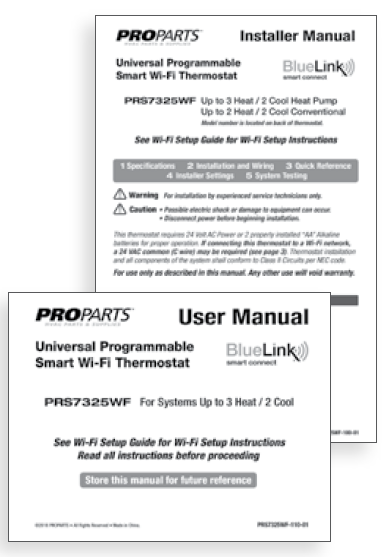
- Properly wire and configure thermostat.
- Refer to the installer guide.
- Refer to the user manual for programming and maintenance
Set-Up for Connection
Before beginning setup you will need to:
- Know your Wi-Fi network name and password
- Have a valid e-mail address
- Get the FREE app
Apple® Devices:
Download the BlueLink Smart Connect® application from the Apple® App Store
AndroidTM Devices:
Download the BlueLink Smart Connect® application from the Google Play Store

Desktop Computer:
Go to www.bluelinksmartconnect.com and create an account

Login and Register
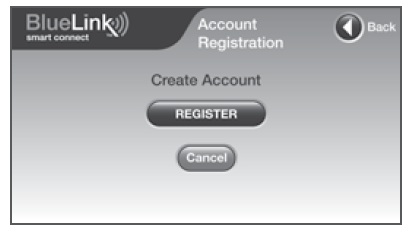
- Open the BlueLink Smart Connect App. Select REGISTER and enter a valid e-mail address.

- Scan or enter the thermostat serial number. You can locate this number on the back of the thermostat or on the enclosed thermostat registration card.
- Complete the remaining registration screens. Once you reach the Create Account screen, select REGISTER
Enter Network Information
Enter your network name (SSID) and password, select ENTER
Enable Wi-Fi on Thermostat
- On the thermostat, press and hold the HOLD and RETURN buttons for 3 seconds.

- The display will alternate the words WIFI and SCAN and the symbol will flash

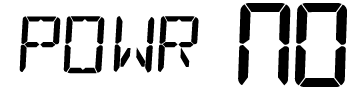
- If you are not connected to 24 VAC, the thermostat will display POWR NO (No Power
Connect to Thermostat
The application will prompt you to go to your smartphone, tablet or computer Wi-Fi settings and select the bluelink_wifi network. See samples shown.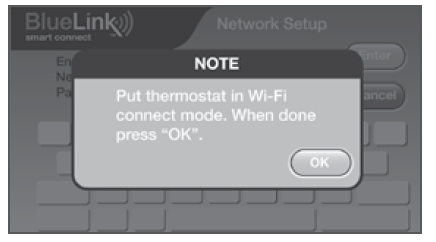

Complete Setup
- After selecting the bluelink_wifi network, use the home key to return to the application and select OK.

- The word WAIT will appear in the thermostat display.
- Once a connection is made, Connection Successful will appear in the application screen. At thermostat, your network name followed by the MAC address will appear.

- At thermostat, press RETURN to exit Wi-Fi setup mode
Changing Your Wi-Fi Settings
First Clear Your Thermostat Wi-Fi Settings
- Press and hold the RETURN button for 4 seconds.
- The display will change showing the first User Option.
- Press RETURN until you see the word WIFI in the display.
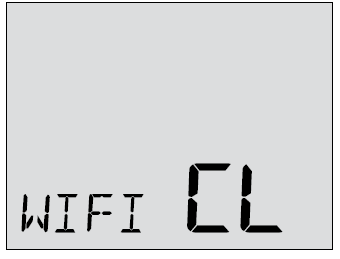
- Press the button until WIFI CL appears.
- Press RETURN to exit and clear all Wi-Fi settings.
Then Update Your App Settings
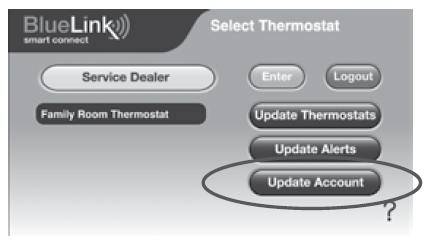
- Open the app and select Update Account.
- Enter your account password.
- Select Wi-Fi Settings.
- Select the thermostat you wish to change.
- Choose WI-FI Network or WI-FI Password and select Enter.
- Update the information and select Enter
Prostat
- 844-BLU-LINK (844-258-5465) (U.S.)
Apple and the Apple logo are trademarks of Apple Inc., registered in the U.S. and other countries. App Store is a service mark of Apple Inc. All other trademarks are the property of their respective owners
- ©2018 PROPERTY
- All Rights Reserved
- Made in China
REFERENCE
DOWNLOAD MANUAL
Prostat PRS7325WF Programmable Wi-Fi Thermostat Setup Guide
OTHER MANUALS:
Prostat PRS7325WF Universal Programmable Thermostat Installational Manual
Prostat PRS7325WF Universal Programmable Thermostat Product Specifications Guide

Prostate PRS7325WF Programmable Wi-Fi Thermostat Setup Guide