
Netatmo V1.0 Smart Wireless Thermostat
 Netatmo Thermostat user manual
Netatmo Thermostat V1.0 / December 2013
You can ˝nd an interactive version of this user manual in your Netatmo app (iPhone/iPad/Android). It is also available for computer at http://my.netatmo.com by accessing your personal account
How does it work
- How does it work?
The Netatmo Thermostat compares the setpoint temperature (wanted temperature) with the room temperature, and decides if it must switch the boiler on or o˙.

- You replaced a wired (wall-mounted) thermostat
In this installation, the Netatmo Thermostat is wall-mounted and controls your boiler using existing wall-wires.
It uses radio to connect to the Netatmo Relay.
The Netatmo Relay provides Wi-Fi connection to internet and remote control from your app.
- You replaced a wireless thermostat or setup your ˝rst thermostat
In this installation, the Netatmo Relay is wired to your boiler and controls your heating.
It uses radio to connect to your thermostat, on which you can set the setpoint temper-ature.
The Netatmo Relay also provides Wi-Fi connection to internet and remote control from your app.
Set temperature on the thermostat
Set the temperature on the thermostat
The Thermostat displays the setpoint temperature (full font) and the measured Temperature (empty font).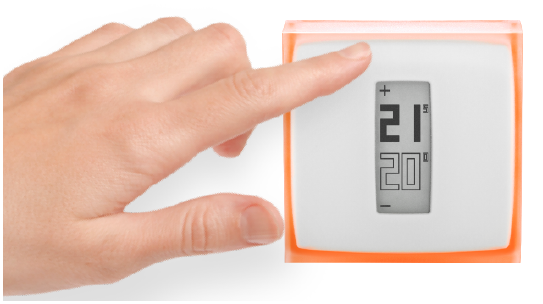
When you don’t interact with the thermostat, it follows the temperatures givan by your weekly heating schedule.
When you occasionally want to set a temperature different from the heating schedule, push the upper part of the thermostat to increase the setpoint temperature, or the lower part of the thermostat to decrease the temperature. The thermostat ceases to follow the schedule for a default time, con˝gurable in the Netatmo app’s settings menu once this time is elapsed, the temperature goes back to following the heating schedule.
Power supply
Thermostat’s power supply
The thermostat is supplied by 3 AAA batteries.Depending on your conguration, the Relay can be supplied by the boiler’s main (wireless thermostat setup), or can be supplied by any power plug in your home (wall- mounted/wired thermostat setup).
Relay’s power supply
The Relay is powered by 220V main power.
Depending on your configuration, the Relay can be supplied by the boiler’s main (wireless thermostat setup), or can be supplied by any power plug in your home (wall- mounted/wired thermostat setup).
What happens when Wi-Fi is down?
What happens when the Wi-Fi is shut down?
When the Wi-Fi stops, your Thermostat keeps working as a normal thermostat. It keeps following its schedule, taking manual temperatures from the Thermostat itself, and following “away” and “frost-guard” modes until you manually set the temperature differently.
Heating algorithm
Heating algorithms
To decide when to turn On and Off your boiler, the Thermostat uses 1) your heating history, 2) the room temperature, 3) the setpoint temperature and 4) a given heating algorithm.
- This algorithm is the part in your Thermostat that takes decisions.
- You can chose between different algorithms (hysteresis or PID, see below) in Settings
>Your Thermostat >Advanced settings.
Hysteresis algorithm
During the ˝rst weeks of your Thermostat’s life, only this algorithm is available. With this algorithm, when the di˙erence between the room and the setpoint temperatures is less than the sensitivity threshold, the Thermostat considers it has reached the setpoint temperature. You can change this threshold in the advanced settings (see below).
This algorithm is recommended if you have a wood stove as it turns the boiler on and o˙ less frequently.
Hysteresis settings
In the advanced parameter menu, you can change the sensitivity threshold of your hysteresis algorithm. For a small threshold (0,1 degree), the thermostat will be more reactive to temperature and setpoint changes. For a bigger threshold, the Thermostat will be more tolerant to temperature and setpoint changes, and will switch less often the boiler.
PID algorithm
After two weeks of Thermostat use, this algorithm activate. You can deactivate it and come back to hysteresis algorithm if wanted. During these two ˝rst weeks, the Thermostat learns your home characteristics, such as your thermal inertia or your heating isolation. These characteristics are then updated regularly.
Once those characteristics set, the Thermostat uses an advanced PID (Proportional-Integral-Derivative) algorithm for a better temperature regulation, allowing for less oscil-lation around the setpoint temperature.
Heating prediction
Heating prediction
- The heating prediction is an intelligent feature of the Thermostat which continuously de-termines the time required for your heating to reach your scheduled comfort temperatures.
- During the learning period of two weeks, the Thermostat will analyse the speci˝c char-acteristics of your house. Then it will be able to turn your heating on when needed so you have the comfort temperature reached when you need it.
- To work correctly, the Thermostat needs to use the outdoor temperature.
- Indeed, the colder it is outside, the more time your heating will need to heat your house. And vice versa.

- Heating without prediction
- Temperature schedules with di˙erent outdoor temperature: -5 ◦C and +15◦C
Outdoor temperature data
- By default, your Thermostat will use the local weather forecast.
- If you own a Netatmo Weather Station, the Thermostat will use the temperature mea- sured by the Outdoor Module. This allows your Thermostat to predict more accuratelythe outdoor temperature variations.
- To work correctly, the Weather Station needs to be installed in the same location as the Thermostat and accessible trough the same Netatmo account. To be eective, the outdoor Module of the Weather Station must be positionned on the
- North facing wall of your house, half way up the wall and away from any disturbing heating source (chimney, ventilation grid…)
- If a new Netatmo Weather Station is installed, the temperature data from the Outdoor
Module will be automatically used.
Troubleshooting
Recon˝gure the Wi-Fi
Recon˝gure the Wi-Fi of the Relay
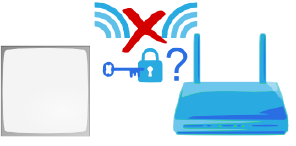
If you have moved your Thermostat or you have changed the Wi-Fi password, you can recon˝gure your Thermostat’s Wi-Fi in Options ->Your Thermostat ->Con˝gure Wi-Fi.
Thermostat not available
The Thermostat cannot be joined
When your app displays The Relay cannot join the Thermostat , the Thermostat and the Relay cannot communicate by radio between each other. The reason can be one of the following:
Reason 1 : the Thermostat ran out of batteries
If your Thermostat displays the following icon, it ran out of batteries and they should be changed.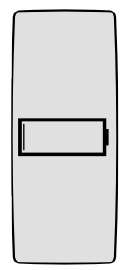
Reason 2: no radio signal
- If the Thermostat and the Relay are too far away or separated by thick walls, they may not be able to communicate.
- If it is the Relay that is wired to your boiler (wireless setup), the Thermostat displays a No radio signal icon and cannot control your boiler anymore.

- If it is the Thermostat which is wired to your boiler (wall-mounted setup), it displays a small exclamation mark, and continues to control your boiler.

- To solve the lack of radio signal, reduce the distance between the Thermostat and the Relay, and push the upper part of the Thermostat so it looks again for the Relay’s signal. The radio connection between the two can take up to one minute.
Relay disconnected from Netatmo servers
Relay cannot be joined through internet
If your app displays Your Netatmo Relay is disconnected from our servers , the Relay has lost its internet connection (over Wi-Fi). The reason can be one of the following:
Reason 1: the Wi-Fi password has changed
If you changed your Wi-Fi, the Thermostat cannot access it anymore. To recon˝gure your Thermostat’s Wi-Fi, go to Options ->Your Thermostat ->Con˝gure Wi-Fi
Reason 2: No internet access
The relay can access your Wi-Fi access point but this latest has no internet access. If so, please check your internet access.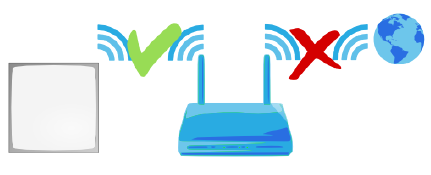
Reason 3: weak Wi-Fi signal
If the Relay is too far away from your Wi-Fi access point or separeted by thick walls, it may not be able to communicate with your Wi-Fi access point. Bring the relay and your Wi-Fi access point closer.
Reason 4: no electrical power
In order to check the power supply of your relay, unplug your relay from the power socket or the boiler adapter and plug it back. The relay should blink blue. If it does not blink, it is incorrectly power supplied:
- If the relay is wired to your boiler, check where the blue and brown wires of the boiler adapter are properly wired. (Make sure to switch o˙ the main power in your house beforehand.)
- If the relay is plugged into a wall socket, make sure that the socket is not switched o˙.
Reason 5: your Wi-Fi access point blocks the relay’s internet access
Your Wi-Fi access point may limit the internet access to a list of devices whose MAC adresses are known (MAC ˝lter). If it is the case, add the relay MAC adress to that list.
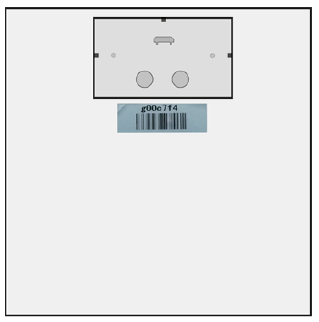
The relay MAC adress is written on its back. Just replace the g with 70:ee:50 . For example g002460 has 70:ee:50:00:24:60 as MAC adress.
You can also access directly to the MAC adress of your relay in Settings ->Your Ther-mostat.
Real-time mode not available
Real-time mode not available
If your app displays an exclamation mark on the left of your thermostat, the real-time mode is not available.
In this case, the Thermostat communicates with the server every 10 minutes to get the latest changes to the schedule or the manual setpoints.
Reason : your ˝rewall blocks access to a port
The relay must access to the port 25050 (UDP and TCP) in order to be able to communicate in real time with the servers. Please check that this port is not blocked.
The Netatmo app
Set the temperature
What is displayed
Mobile version: In the mobile app, the dashboard displays the setpoint temperature (temperature to which you want to heat your home) and the temperature measured by the Thermostat (actual room temperature).
PC version
In the webapp, the dashboard displays the setpoint temperature (temperature to which you want to heat your home) and the temperature measured by the Thermostat (actual room temperature).
Manually change the setpoint temperature
To manually change the temperature setpoint from the app, simply tap the top (to increase the temperature) or the bottom (to decrease the temperature) of the thermostat displayed in the app.
This temporarily change the setpoint temperature for a duration displayed in the timer at the bottom of the app. You can change this duration by sliding the timer between 1 and 12 hours.

Once this time elapsed, the temperature setpoint follows the schedule again.
Heating schedule
Weekly heating schedule
- The weekly heating schedule lets you save energy while maintaining comfort.
- The schedule slices each day in heating periods, and gives each heating period a tem-perature with a name.
Accessing the schedule
Mobile version: You can access to the schedule by tapping the clock icon in the Netatmo app.
Schedule setup
- The ˝rst time you start your app, a small quizz helps you create your personalized schedule.
- This schedule insures that you always have a temperature suited to your activities, for a maximum comfort.
- By setting a lower temperature at night and when you are away, this schedule helps you save energy.
- It can be reset by visiting Option ->Your Thermostat ->Reset your weekly schedule. You can also view and customize the schedule within the app.
Heating periods
The weekly schedule is divided in heating periods. Each period is characterized by:
- a beginning and end time
- a temperature with its corresponding name and color
There are three default temperatures: comfort , night and eco to which you can add new temperatures (for example nap time , gym …)
Modifying the temperatures
- When you change a temperature, you change it in every heating period using it.
- For example if your schedule has a Night – 16◦C period everyday from 23h to 6h, If you change the Night temperature to Night – 15◦C , every night will change to 15◦C between 23h and 6h.
Delete a temperature
You can delete a temperature once no heating period uses it anymore. To do this, click on Modify temperatures in the schedule.

Color scale
The following color scale lets you know in one glance the temperature associated to an heating period.

Away and frost-guard toggles
Away and frost-guard toggles
You can toggle the away and frost-guard modes in one gesture, from you app’s dashboard.
For a couple of days leave, use the away mode. It lowers the temperature to save on your bills. For an extended leave, use the frost-guard mode. It set the boiler activity to a minimum, while preserving a temperature of 7◦C to avoid the water to freeze.
Duration of away and frost-guard
Away and frost-guard have no time limit. To return to the schedule, simply toggle o˙ those modes.
Corresponding temperatures
The away mode temperature is set to a default 12◦C. The frost-guard mode tem-perature is set to a default 7◦C.
To change these temperatures, in the heating schedule, select modify temperatures .

Graphs
Automatic recording
The Netatmo Thermostat records measured temperature, temperature setpoint and the pourcentage of time during which the boiler was on, with one point every 10 minutes.
Access the graphs from a smartphone
Mobile version
To access the graphs from your app’s dashboard, turn your smartphone in landscape mode.You can then pinch the graphs to zoom.

Legend
The gray curve represents the room temperature history.
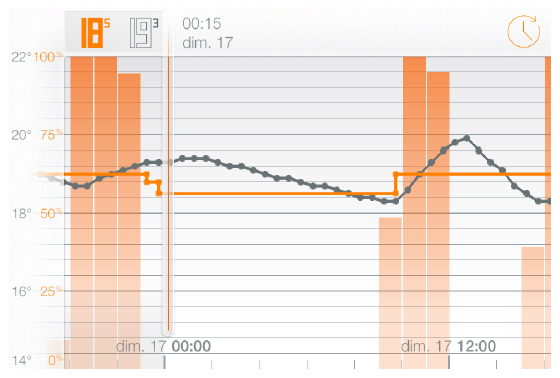
The orange curve represents the setpoint temperature history.
The height bars in the background represent the percentage of the time the boiler was. For example, on a 30 minutes bar, if the boiler was on during 15 minutes, the height of the bar is 50%. It lets you compare your energy consumption between one week and another, and observe the e˙ects of increasing or lowering the setpoint temperature.

Energy savings
Energy savings
Saving energy can be achieved with some simple actions on your heating system:
- By installing a room thermostat (which measures temperature in your living room and control the boiler according to it) and set a comfortable and right setpoint temperature.
- By setting a heating schedule that follows your daily activities.
- By remotely controlling your heating and avoiding to heat your empty home when you are away.
Set the right temperature
Energy studies recommend temperatures of 19◦C during the day and 16◦C at night.
Without compromising your comfort, think about decresing temperature and saving energy. When decreasing the temperature by 1 degree, you save 7% over energy consump-tion.
Schedule your home’s temperature according to your activities
With an heating schedule following your daily activities, the Netatmo Thermostat decreases the temperature at night and while you are away.
When using the app for the ˝rst time, Netatmo creates your weekly heating schedule based on your activities.
You can modify later this weekly schedule by accessing it from the dashboard (tap the clock icon).
Save energy when away
When on extended leaves, you can decrease your energy consumption by activating the away mode or frost-guard mode.
Away and frost-guard modes are always a good opportunity to save energy: though bringing the house back to a comfortable temperature will use energy, lowering the house’s temperature when away reduces temperature losses (which are proportional to tempera-ture di˙erences between outdoor and indoor). To sum it up, bringing home back to a comfortable temperature costs always less than maintaining it to this temperature.
Energy Reports
What is the energy report about?
Each month of the heating season, a personnalized energy report is calculated by your Thermostat. This energy report is sent to you by email. It has four parts:
- Your savings
- The time your boiler was ON month to month
- The energy e°ciency of your heating schedule
- Tips of the month to help you master your energy consumption
If your heating was not ON enough time the previous month, you will not receive an energy report or a partial one.
The savings you have made
- The schedule of you Thermostat, the Away and Frost Guard modes and the remote control allow you to not always heat your house to a constant comfort level. The savings are then calculated relative to the theoretical time your boiler would have had to always heat your house at a constant comfort temperature (no programmable thermostat installed).
- The outside temperature variations are also used allowing the savings calculated to be even more precise.
The amount of time your heating was ON
The amount of time your heating was ON is compared month to month.
Several reasons can increase or decrease the amount of time your boiler is ON, including average outside tempatures and how long your Thermostat has been in Away and Frost Guard modes.
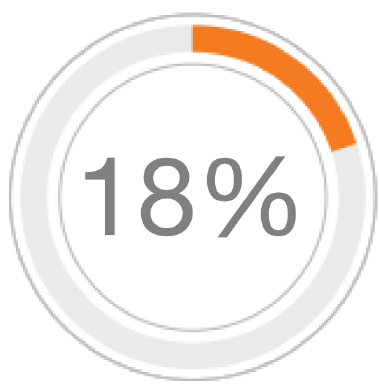
The energy e°ciency of your heating schedule
This indication helps you determine if you heating schedule is e°cient or if it can be improved.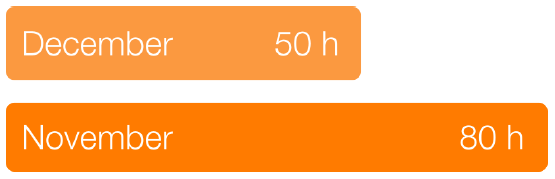
- It is based on the temperature recommendations of public companies.
Did you know?
These tips help you better understand your heating.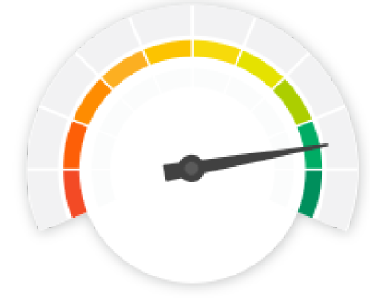
Good to know
You can deactivate/activate the sending of your energy report anytime by clicking the Unsubscribe link at the end of your energy report.
Reference
Download Manual:
Netatmo V1.0 Smart Wireless Thermostat User Manual