Moes WHT-HY609-GB-WH-MS WiFi Smart Programmable Thermostat

Preparation required for Wifi Connection
You will need a 4G mobile phone and wireless router. Connect the wireless router to the mobile phone and record the WIFI password Lyou will need it when the themostat is paired with the Wifij.
Step 1 Download your app
Android users can search “Smart RM” or ”Smart life” on Google Play, IPhone users can search “Smart RM” ”Smart life” in the App Store.
Step 2 Register your account
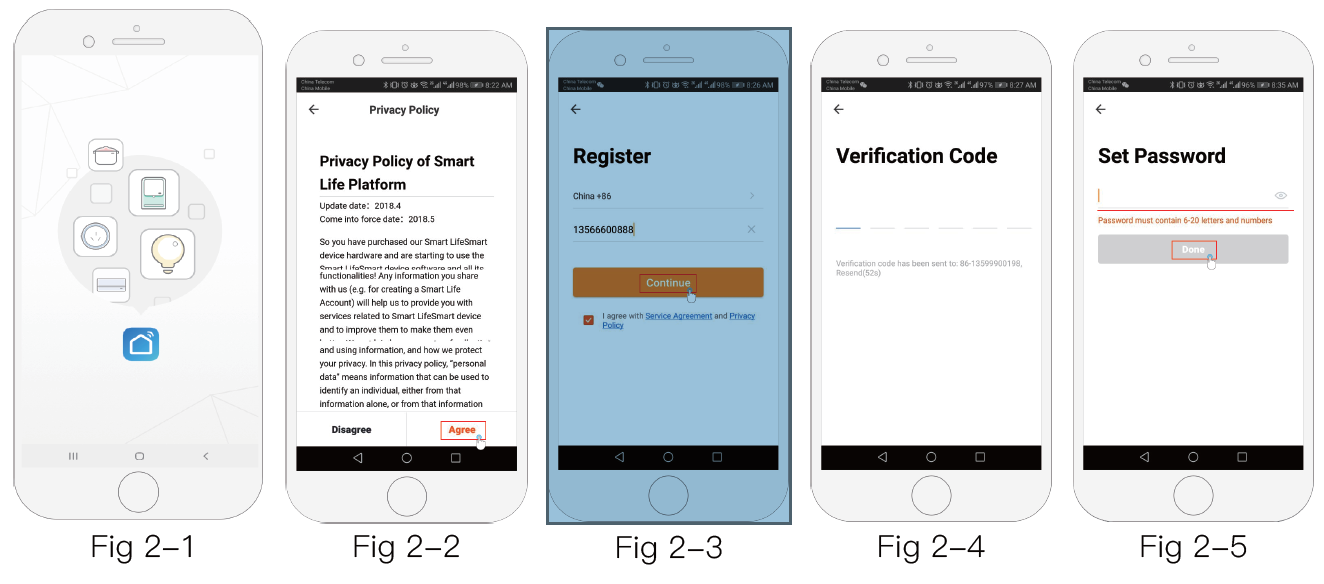
- After installing the app, click “register” (Fig 2-1)
- Please read the Privacy Policy and press Agree to proceed
- Registration account name uses your Email Or mobile phone
- You will receive a 6-digit verification code via email or SMS
- Please set the password, Password must contain 6-20 letters to the next step. (Fig 2-2) number. Select Region, then click “Continue”(Fig 2-3) to enter your phone (Fig 2-4) and numbers. click “Done”(Fig 2-5)
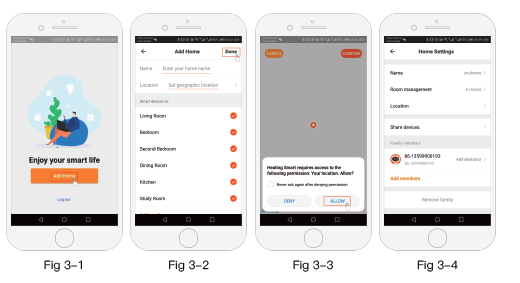
Step 3 Create family information(Fig 3-1)
- Fill in the family name (Fig 3-2 ).
- Select or add a room (Fig 3-2).
- Set location permission (Fig 3-3) then set thermostat location (Fig 3-4)
Step 4a Connect your Wi-Fi signal (EZ distribution mode)
- Go to your Wifi setting on your phone and make sure you are connected via 2.4g and not 5g. most modern routers have 2.4g& 5g connection. 5g connections do not work with the thermostat.
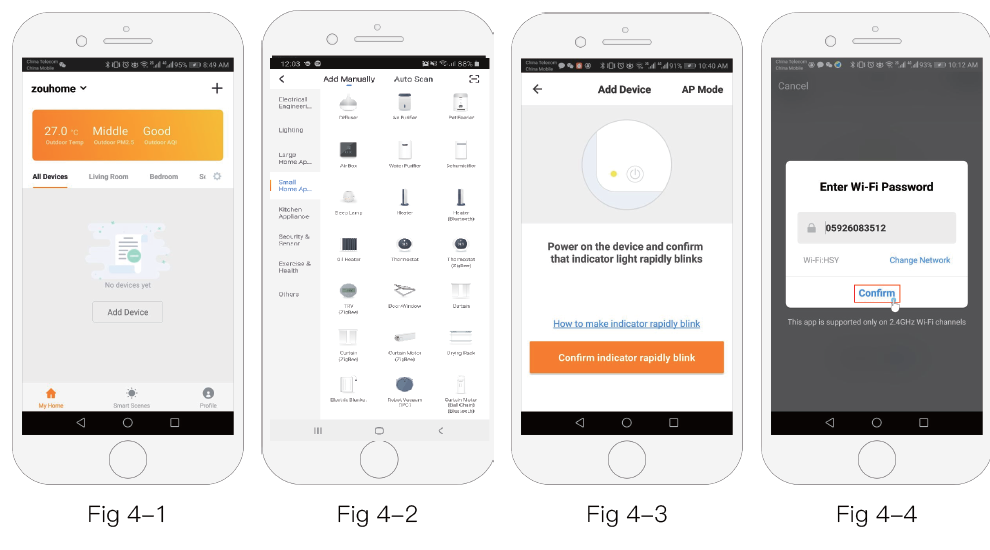
- On the phone press “Add Device” or “+” in the upper right comer of the app to add the device (Fig 4-1) and under the small appliance section select the device type “Thermostat” (Fig 4-2)
- With the thermostat powered on, press and hold ”
 and
and at the same until both icons flash to indicate the EZ distribution mode. This can take between 5-20 seconds.
 - On your thermostat confım 6icons are rapidly blinking and then go back and confirm this on your app. Enter the password of your wireless router this is case sensitive (fig 4-4) and confirm. The app will connect automatically (Fig 4-5) This may typically take up to 5-90 seconds to Complete.
- If you get an error message make sure you have entered your correct Wi-Fi password (case sensitive typically found on the bottom of your router) and that you are not on your Wi-Fi’s 5G3 connection.
- Your room name can be edited when the device is connected.
Step 4b (Alternative method) (AP mode pairing) Only do this if step 4a failed to pair the device
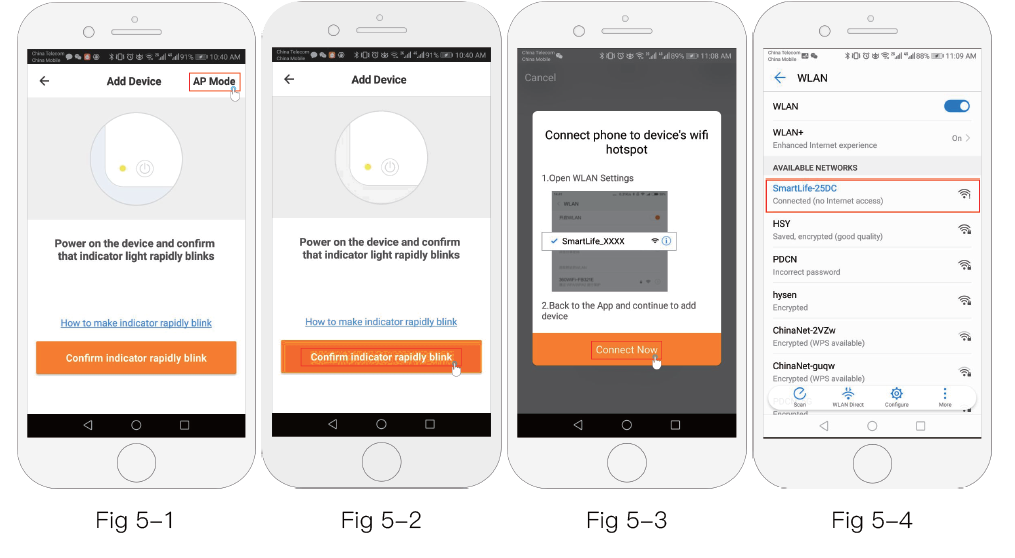
- On the phone press “Add Device” or “+” in the upper right corner of the app to add the device (Fig 4-1) and under the small appliance, section selects the device type “Thermostat” and click AP Mode in the top right corner. (Fig 5-1)
- On the thermostat, press power on and then press and hold “ ” and “ ” until
 flashes. This can take between 5-20 seconds. If
  also flashes release buttons and press and hold “ ” and “ ” again until just flashes.
 - On the app click “confirm light is blinking”, then enter the password of your wireless router(fig 4-4)
- Press “Connect now” and select the Wifi signal (Smar- tlife-XXXX) of your thermostat(Fig 5-3 and 5-4) it will say the internet may not be available and ask you to change network but ignore this. Go back to your app and click “Connect” then the app will connect automatically(Fig 4-5)
Step 5 Changing sensor type and temperature limit
- Press the setting key
 (Fig 4-8) in the bottom right-hand corner to bring up the menu.
 - Click the Sensor type option and enter the password (normally 123456). Then you will be given 3 options: “Single built-in sensor” will only use the internal air sensor (DO
NOT USE THIS SETTING*) “Single external sensor” will only use the floor probe (ideal for bathrooms where thermostats is installed outside the room). - “Internal and external sensors” will use both sensors to read the temperature (Most common option). Once you have chosen the sensor type, check that “Set temp. max” option is set to a suitable temperature for your flooring (typically 45°C)
Step 6 Programming daily schedule
- Press the setting key (fig 4-8) in the bottom right-hand corner to bring up the menu, at the bottom of the menu there will be 2 stand-alone options called “week program type” and “weekly program setting”.
- “Week program” type allows you to choose the number of days the schedule applies to between 5+2 (weekday+weekend) 6+1 (Mon-Sat+Sun) or 7 days (all week).
- “Weekly program” setting allows you to choose the time and temperature of your daily schedule at varying points. You will have 6 options of times and temperatures to set. See example below.
| Part 1 | Part 2 | Part 3 | Part 4 | Part 5 | Part 6 |
| Wake up | Leave Home | Back Home | Leave Home | Back Home | Sleep |
| 06:00 | 08:00 | 11:30 | 13:30 | 17:00 | 22:00 |
| 20℃ | 15℃ | 20℃ | 15℃ | 20℃ | 15℃ |
Additional Features
Holiday Mode: You can program the thermostat to be on for a set temperature for up to 30 days so that there is background heat in the house while you are away. This can be found under the mode (fig 4-8) section.You have the option to set the number of days between 1-30
Lock Mode: This option allows you to remotely lock the thermostat so no changes can be made. This can be done by clicking the (Fig 4-8) symbol. To unlock click the (Fig 4-8) symbol again.
Grouping devices: You can link multiple thermostats together as a group and control them all simultaneously. This can be done by clicking on the (Fig 4-8) in the top right corner and then clicking the Create Group option. If you have multiple thermostats linked it will allow you to tick each one that you want to be in the group and once you confirm the selection you will be able to name the group.
Family Management: You can add other people to your family and allow them to control the devices you have linked. To do this you need to go back to the home page and click on the family name in the top left corner and then click on Family Management. Once you have selected the family you wish to manage there will be an option to Add Member, you will need to enter the mobile number or email address they have registered the app with to send them an invitation. You can set whether or not they are an administrator which allows them to make changes to the device ie removing it.
Thank you for your support and purchase at we Moes,we are always here for your complete satisfaction,just feel free to share your great shopping experience with us.
If you have any other need,please do not hesitate to contact us first,we will try to meet your demand.
WENZHOU NOVA NEW ENERGY CO.,LTD
- Address: Power Science and Technology Innovation
- Center, NO.238, Wei 11 Road, Yueqing Economic
- Development Zone, Yueqing, Zhejiang, China
- Tel:+86-577-57186815
- Email:[email protected]
- AMZLAB GmbH
- Laubenhof 23, 45326 Essen
- Made In China
Reference
Download Manual:
Moes WHT-HY609-GB-WH-MS WiFi Smart Programmable Thermostat Programming Guide

Moes WHT-HY609-GB-WH-MS WiFi Smart Programmable Thermostat Programming Guide