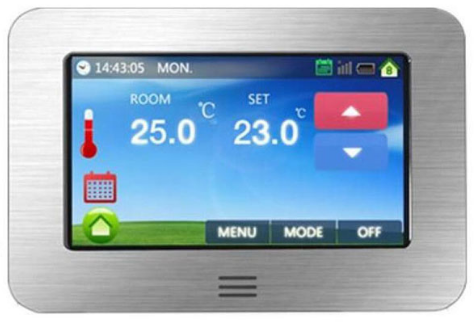
Hotowell HTW-31-DT12 Color Touch Screen Heating Thermostat
Product Features
- 4.3inch Color Touch Screen Operation
- Electric Heating System( Max.16A)
- Adjustable Comfort Mode, Economy Mode, Party Mode, Holiday Mode, and Program Mode Control
- 5+1+1 Weekly Programmable
- External and Internal Sensor Select
- Four languages select: English, French, Germany, Dutch
- Clock and Date Display
- Temp. Calibration
- Over-heating Protection
- 86*86mm mounting
Technical Data
- Voltage 230V, 50/60Hz Backlight Color
- Load Current 16A(Max)
- Sensor NTC3950,10Kohms at 25℃
- Temp. Setting Range 5~35℃
- Accuracy ± 0.5℃
- Ambient 0~50℃
- Protection Class IP30
- Relative Humidity 85%
- Housing ABS to UL94-5
Screen and Display
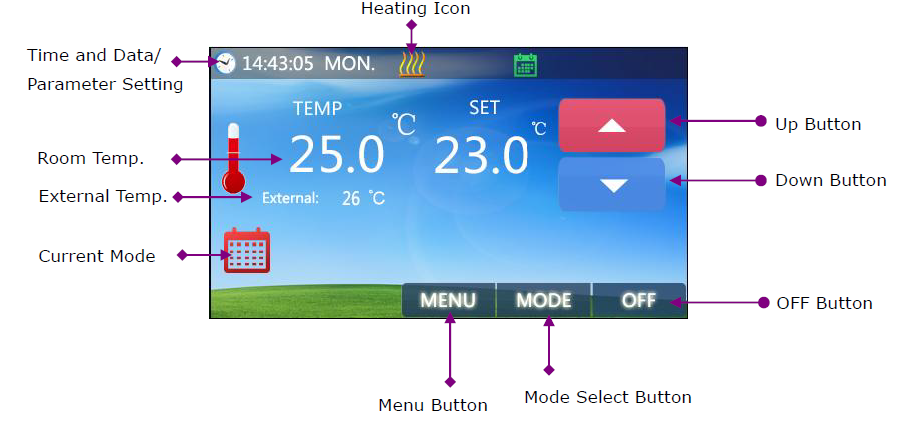
Home Screen
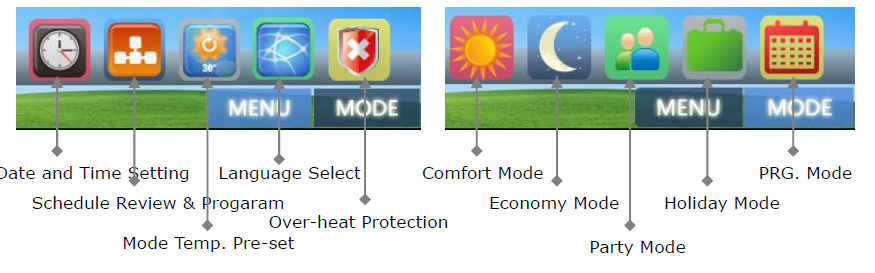
Sub Menu Screen/ Sub Mode Screen
Schedule Setting
Schedule Review
Press Menus Button, choose , then enter the weekly schedule page, and review the whole schedule.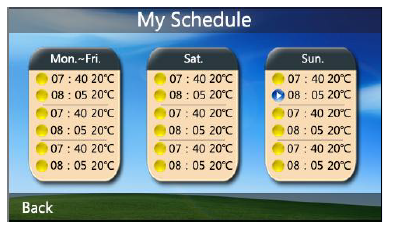
Edit My Schedule
For example, if you want to edit the Sat. schedule, you can press the Sat. part, then you will enter the edit page. Every setting can be finished through the  button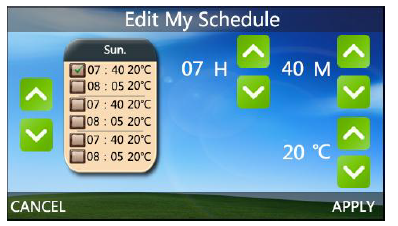
- Press the Up or Down Button to choose the period you are going to change.
- There are a total of six periods. Whichever period is choose
 , will display.
 - After the period is selected, you can set the hour, minute, and temperature.
- After all, schedules are set, press APPLY to fulfill the new schedule, or you can press Cancel
Edit Date and Time
Press  to enter the date & time edit page. Then press to select the correct date and time.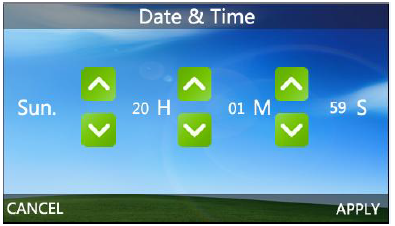
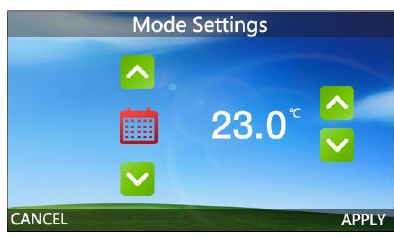
Mode Settings
Press Menu then select the button to enter Mode Settings page, though you can select the mode and adjust its pre-setting temperature.
Protection Settings
Press Menu then select the button to enter Protection Settings page and adjust the desired protection values. Then press APPLY to keep the temp.
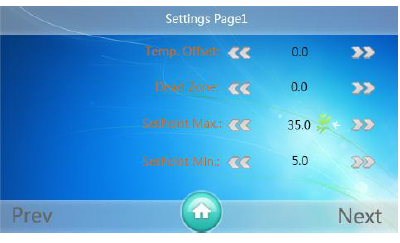
Parameter Settings
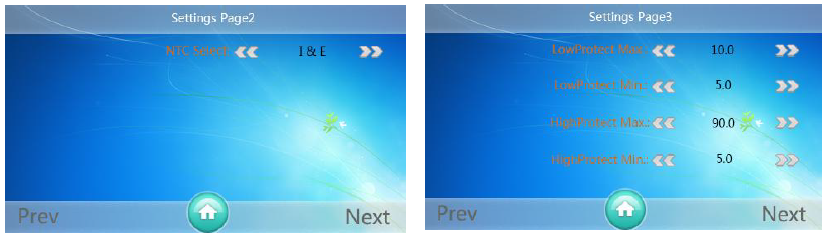
Under Power off mode, long Press  for 10 seconds, then you will see the page as the picture shows. There are totally five pages; you can change the settings to the one you want.
Color Touch Screen Heating Thermostat HTW-31-DT12
| Menu | Description Range |
| 01 | Temp. Offset -8 ℃ ~8℃ |
| 02 | Dead Zone 0℃ ~3℃ |
| 03 | SetPoint Max. 5 ℃ ~35℃ |
| 04 | Set Point Min. 5 ℃ ~35℃ |
| 05 | NTC Select(Internal, External) I only, E only, I & E, I or E |
| 06 | Low Protection Max. 5 ℃ ~10℃ |
| 07 | Low Protection Min. 5 ℃ ~10℃ |
| 08 | High Protection Max. 5 ℃ ~90℃ |
| 09 | High Protection Min. 5 ℃ ~90℃ |
| 10 | Backlight Time 0s~60s |
| 11 | Min. Backlight Brightness 1%~100% |
| 12 | Relay Delay Time 0s~250s |
| 13 | Relay Output Normal(NO); Inverted(NC) |
| 14 | Restore << or >> |
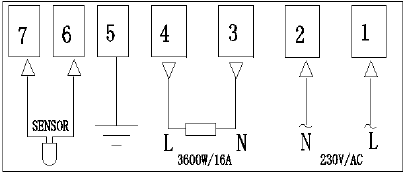
Wiring Diagram
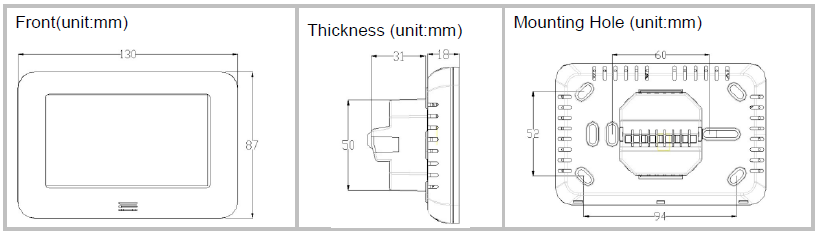
Dimension
REFERENCE:
DOWNLOAD MANUALS:
Hotowell HTW-31-DT12 Color Touch Screen Heating Thermostat User Manual

Hotowell HTW-31-DT12 Color Touch Screen Heating Thermostat User Manual