
Honeywell RCHT8610WF Programmable Thermostat
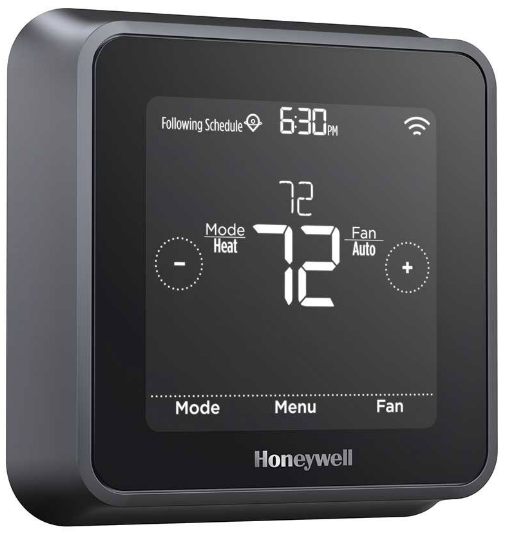
Get the most from T5 Smart Thermostat
Multiple programming options that fit your lifestyle:
- Location-Based scheduling – The thermostat uses your smartphone’s location to know when you’re away, and saves you energy. Through geofence technology, it senses your return and helps make you comfortable upon arrival. You can always manually change your preset Home and Away temperature either on the thermostat or on the Honeywell Home app.
- Smart scheduling – Use a combination of geofencing and time scheduling to fit your busy, active lifestyle.
- Time-Based scheduling – Program your thermostat for one week; each day (each day is a different schedule); Mon-Fri, Sat, Sun; or Mon-Fri, Sat-Sun. All days with four adjustable periods per day.
- No scheduling – Control your comfort manually by adjusting temperature set points only.
- Smart Alerts. Push notifications remind you of filter changes and warn you of extreme indoor temperatures.
- Smart Response. Learns your heating and cooling system to deliver the optimal temperature at the right time.
- Auto Change From Heat to Cool. Automatically determine if your home needs heating or cooling to provide maximum comfort.
CAUTION: ELECTRICAL HAZARD
Can cause electrical shock or equipment damage. Disconnect power before beginning installation
CAUTION: EQUIPMENT DAMAGE HAZARD
Compressor protection is bypassed during testing. To prevent equipment damage, avoid cycling the compressor quickly
CAUTION: MERCURY NOTICE
If this product is replacing a control that contains mercury in a sealed tube, do not place the old control in the trash. Contact your local waste management authority for instructions regarding recycling and proper disposal.
CAUTION: ELECTRONIC WASTE NOTICE
The product should not be disposed of with other household waste. Check for the nearest authorized collection centers or authorized recyclers. The correct disposal of end-of-life equipment will help prevent potential negative consequences for the environment and human health.
Compatibility
- Compatible with most heating, cooling, and heat pump systems
- Required: 24 VAC power (“C” wire)
- Does not work with electric baseboard heat (120-240V)
- Does not work with millivolt systems
- Does not support input (S terminals) for indoor and outdoor sensors
- Does not support relay (U terminals) for ventilation
- Android or iOS smartphone, tablet, or device
Tools you will need

You may need:

Removing your old thermostat
- Turn power OFF
- To protect yourself and your equipment, Turn off the power at the breaker box or switch that controls your heating/ cooling system.|

- To protect yourself and your equipment, Turn off the power at the breaker box or switch that controls your heating/ cooling system.|
- Check that your system is off
- Change the temperature on your old thermostat. If you don’t hear the system turn on within 5 minutes, the power is off. Note: If you have a digital thermostat that has a blank display, skip this step.

- Change the temperature on your old thermostat. If you don’t hear the system turn on within 5 minutes, the power is off. Note: If you have a digital thermostat that has a blank display, skip this step.
- Remove your old thermostat from the wall plate
- On most thermostats, you can take off the thermostat by grasping and gently pulling. Some thermostats may have screws, buttons, or clasps. Do not remove any wires from your thermostat at this time!

- On most thermostats, you can take off the thermostat by grasping and gently pulling. Some thermostats may have screws, buttons, or clasps. Do not remove any wires from your thermostat at this time!
- Make sure there are no 120/240V wires
- Do you have thick black wires with wire nuts? Is your thermostat 120V or higher? mIf you answered yes to either of these questions, you have a line voltage system and the thermostat will not work. If you are unsure visit: honeywellhome.com

- Do you have thick black wires with wire nuts? Is your thermostat 120V or higher? mIf you answered yes to either of these questions, you have a line voltage system and the thermostat will not work. If you are unsure visit: honeywellhome.com
- Take a picture of how your wiring looks right now
- Be sure to include the letters next to the terminals where the wires are inserted. This will be a helpful reference when wiring your thermostat. Tip: If the color of your wires has faded or if 2 terminals have the same wire color, use the wire labels provided in the package to label each wire.

- Be sure to include the letters next to the terminals where the wires are inserted. This will be a helpful reference when wiring your thermostat. Tip: If the color of your wires has faded or if 2 terminals have the same wire color, use the wire labels provided in the package to label each wire.
- Remove any jumpers
- A jumper connects one terminal to another terminal. It may look like a small staple or even a colored wire and must be removed before continuing. Use a screwdriver to release wires from terminals. The thermostat does not need jumpers.

- A jumper connects one terminal to another terminal. It may look like a small staple or even a colored wire and must be removed before continuing. Use a screwdriver to release wires from terminals. The thermostat does not need jumpers.
- Record if you have wires in the following terminals
- Do not include jumpers as a part of your count. The thermostat does not need jumpers.

- Do not include jumpers as a part of your count. The thermostat does not need jumpers.
- Record if you have wires in the following terminals
- Do not include jumpers as a part of your count. The thermostat does not need jumpers.

- Do not include jumpers as a part of your count. The thermostat does not need jumpers.
- Disconnect the wires and remove the old wall plate
- Use a screwdriver to release wires from terminals. Tip: To prevent wires from falling back into the wall, wrap the wires around a pencil.

- Use a screwdriver to release wires from terminals. Tip: To prevent wires from falling back into the wall, wrap the wires around a pencil.
Installing your T5 Smart Thermostat

- Bundle and insert wires through the UWP
- Pull open the UWP and insert the bundle of wires through the back of the UWP. Make sure at least 1/4-inch (6.4 mm) of each wire is exposed for easy insertion into the wire terminals

Insert the wall anchors
- It is recommended that you use the wall anchors included in the box to mount your thermostat. You can use the UWP to mark where you want to place the wall anchors.
- Level the wall plate.
- Mark the location of the wall anchors using a pencil.
- Drill the holes.
- Insert wall anchors.
- Make sure anchors are flush with wall.
- Tip: Use a 7/32 (5.6 mm) drill bit

- Set R-switch position and insert R-wire or wires
- Set the R-switch up or down based on your wiring notes in Step 7. Insert wires into the inner holes of the terminals on the UWP. The tabs will stay down once the wire is inserted. If you have 1 R-wire (R, Rh, or Rc)

- If you have 2 R-wires (R or Rh, and Rc)

Connect remaining wires from Step 8
Tip: Do not mount the UWP to the wall prior to connecting the wires. Depress the tabs to put the wires into the inner holes of their corresponding terminals on the UWP (one wire per terminal) until it is firmly in place. Gently tug on the wires to verify they are secure. Tip: If you need to release the wires again, push down the terminal tabs on the sides of the UWP. This wiring is just an example, actual wiring may vary
- Mount the UWP and close the door
- Mount the UWP using the provided screws. Install all three screws for a secure fit on your wall. Close the door after you’re finished

- Attach your thermostat
Align the thermostat onto the UWP and firmly snap it into place.

- Turn your power ON
- Turn on the power at the breaker boxer switch that controls the heating/ cooling system

- Return to the thermostat
- Return to the thermostat. Confirm the screen shows START SETUP. If it does, continue to “Setup with Honeywell Home App” on page 15. If your thermostat does not show START SETUP, please contact Reside support.

Setup with Honeywell Home App
- Start Setup with the app Touch START SETUP on thermostat.
- Select to setup with the app Touch Yes on the USE APP screen


- Your thermostat is now ready to be configured using the Honeywell Home app
- Download the “Honeywell Home” app from the App store or Google play.
- Open the Honeywell Home app. Your thermostat should appear under Thermostat Found. Tap SET UP NOW as shown below to continue. If your thermostat doesn’t appear, create an account (if necessary), or sign in to your Honeywell Home account. Then select the T5 Smart Thermostat to install.
- The Honeywell Home app will walk you through the rest of setup

How to use your Honeywell Home App

How to use your T5 Smart Thermostat

- Select system mode Auto/Heat/Cool/Off/EM Heat (emergency heat)
- Contains features: schedule, screen lock, ventilation, Wi-Fi, clean screen, and other thermostat settings.
- Select Fan mode Auto/On/Circulate
Finish Setup
Touch until you see Finish Setup. Touch Select or touch text area
Setup Wi-Fi
At the end of setup process you will be prompted to SETUP WIFI. If your Wi-Fi is still not working, you have to manually set the time and date. Select No on the SETUP WIFI screen.
Set time and date
Set daylight saving time if you are in an area that follows daylight saving time. Set date, clock format and time on the next screens.
Your thermostat is now setup
Refer to page 17 for more information about basic operation
 Equipment Setup Options
| Option # | Option Name | Option Value (factory default in bold) |
| 120 | Schedule Type | No ScheduleMO-SU = Every day the same MO-FR SA SU = 5-1-1 schedule MO-FR SA-SU = 5-2 schedule Each Day = Every day different
Note: You can change default MO-FR, SA-SU schedule here. To edit periods during days, temperature setpoints, or to turn Schedule On/ Off, touch MENU from the Home screen and go to SCHEDULE. |
| 200 | System Type | Conventional Forced Air, Heat Pump, Boiler, Cool OnlyNote: This option selects the basic system type your thermostat will control. |
| 205 | Equipment Type | Conventional Forced Air Heat:Standard Gas, High Efficiency Gas, Oil, Electric, Fan Coil
Heat Pump: Air to Air, Geothermal Boiler: Hot Water, Steam Note: This option selects the equipment type your thermostat will control. Note: This feature is NOT displayed if feature 200 is set to Cool Only. |
| 218 | Reversing Valve | O/B on Cool, 0/B on HeatNote: This option is only displayed if the Heat Pump configured. Select whether reversing valve O/B should energize in cool or in heat. |
| Option # | Option Name | Option Value (factory default in bold) |
| 220 | Cool Stages/ Compressor Stages (#200=Conv./ #200=HP) | 0, 1, 2Note: Select how many Cool or Compressor stages of your equipment the thermostat will control. Maximum of 2 Cool/Compressor Stages. |
| 221 | Heat Stages/ Aux/E Stages (#200=Conv./ #200=HP) | Heat Stages: 0, 1, 2Aux/E stages: 0, 1
Note: Select how many Heat or Aux/E stages of your equipment the thermostat will control. Maximum of 2 Heat Stages for conventional systems. Maximum of 1 Aux/E stage for systems with more than 1 heating equipment type. |
Frequently Asked Questions
Will the T5 Smart thermostat still work if Wi-Fi connection is lost?
Yes, the temperature can be adjusted directly at the thermostat. However, some features, including geofencing, are managed only through the Honeywell Home app and will not function while the connection is down. The thermostat will automatically reconnect to Wi-Fi once the network is restored. The T5 Smart thermostat is not finding the in home Wi-Fi network. thermostat operates in the 2.4 GHz range. That may be why the thermostat does not see the network but the smartphone, which operates in both the 2.4 and 5.0 GHz range, sees the network. Most routers will broadcast two networks, one SSID on the 5.0 GHz radio and one SSID on the 2.4 GHz radio. A change was made on the Honeywell Home app but it has not shown up on the T5 Smart thermostat. There may be a short delay after making temperature and setting changes in the Honeywell Home app.
Can there be multiple users for geofencing?
Yes, there can be multiple users. Geofencing will trigger based on the last person to leave and the first person to return. To properly use geofencing with multiple users:
- Each user needs to create their own account.
- Each user should use their login ID and password across his or her devices, including smartphones and tablets.
- No two users should share the same account.
How are multiple users set up with thermostat?
Access can be given to any or all thermostat locations through the Honeywell Home app. Start by touching the three-line menu icon in the upper left-hand corner of the home screen. Select Manage Users and touch Add User located at the bottom of the screen. Type in the email address of the person to be invited. If they have a account set up, the location will be automatically added to their account. If they don’t have an account, they will receive an email invitation prompting them to download the Honeywell Home app and create their own account.
Note: All individuals with access to a thermostat share the same user privileges. Users added will be able to change the thermostat’s settings, as well as add or delete other users.
Is there a way to extend the signal strength?
The range or distance of the Wi-Fi signal is determined by the router. Check the router’s manual for additional information
There is an alert that says Wi-Fi Signal Lost. What does that mean?
The Wi-Fi signal to the thermostat has been lost. Wait for the thermostat to reconnect or select a new network within the Honeywell Home app configuration menu. If the thermostat is unable to reconnect, you will need to troubleshoot the router to determine the cause.
Why is the thermostat showing up as offline (strike-through Wi-Fi icon) on top of right corner of thermostat display?
If the thermostat displays a strike-through Wi-Fi icon on its screen or shows up as offline on the Honeywell Home app, it has lost connection to the network. Make sure the router is powered and broadcasting. The home’s Wi-Fi network may need to be reset by power cycling the router. Consult the router’s instruction manual for directions on power cycling. When the network has been restored, the thermostat will automatically reconnect.
An activation email hasn’t been received. An email will be sent from [email protected]. An activation email is needed to complete the account setup. If an activation email is not received after five minutes, check the Spam folder of the email account. If you do not find it in the Spam folder, click on the Resend button and the activation email will be resent. If you still do not receive your activation email, please contact the Technical Support team at 1-800-633-3991 for help.
FCC
47 CFR § 15.19 (a)(3)
This device complies with part 15 of the FCC Rules. Operation is subject to the following two conditions:
- This device may not cause harmful interference, and
- This device must accept any interference received, including interference that may cause undesired operation.
47 CFR § 15.21 (USA only)
Changes or modifications not expressly approved by the party responsible for compliance could void the user’s authority to operate the equipment.
47 CFR § 15.105 (b)
See https://customer.resideo.com/en-US/support/residential/codes-and-standards/FCC15105/Pages/default.aspx for additional FCC information for this product.
IC REGULATIONS RSS-GEN
This device contains license-exempt transmitter(s)/receiver(s) that comply with Innovation, Science and Economic Development Canada’s license-exempt RSS(s). Operation is subject to the following two conditions:
- This device may not cause interference.
- This device must accept any interference, including interference that may cause undesired operation of the device
Apple® HomeKit™ Setup Code
The T5 Smart supports Apple HomeKit. When prompted by the Honeywell Home app, scan the code on the last page (back cover) of this guide.
Warranty
2-Year Limited Warranty
For Warranty information go to honeywellhome.com Use of the Works with Apple badge means that an accessory has been designed to work specifically with the technology identified in the badge and has been certified by the developer to meet Apple performance standards. Apple is not responsible for the operation of this device or its compliance with safety and regulatory standards. AirPlay, iPad, iPad Air, iPad Pro, iPhone and iPod touch are trademarks of Apple Inc., registered in the U.S. and other countries. HomePod is a trademark of Apple Inc.
For help, contact:
- WEB honeywellhome.com
- PHONE 1-800-633-3991
- SOCIAL Twitter: @Honeywell_Home, Facebook: Honeywell Home
REFERENCE
DOWNLOAD MANUAL
Honeywell RCHT8610WF T5 Wi-Fi Smart Thermostat Installation Guide
Honeywell RCHT8610WF Programmable Thermostat Installation Guide